# pfSense Setup
# Overview
This document details the installation, configuration, and testing steps for **pfSense** in a secure lab environment, including:
- Network interface management (WAN, LAN, DMZ).
- Firewall and NAT rules.
- Suricata integration for intrusion detection.
- Connectivity and rule validation tests.
This guide is designed to facilitate pfSense configuration via a pre-established configuration file (optional), while allowing manual adjustments if necessary.
# Table of Contents
- [pfSense Setup](#pfsense-setup)
- [Overview](#overview)
- [Table of Contents](#table-of-contents)
- [pfSense Configuration Import (Optional)](#pfsense-configuration-import-optional)
- [Quick Prerequisites](#quick-prerequisites)
- [Recommended Procedure](#recommended-procedure)
- [pfSense Installation and Configuration](#pfsense-installation-and-configuration)
- [Deployment](#deployment)
- [Steps](#steps)
- [Firewall Rules](#firewall-rules)
- [WAN](#wan)
- [LAN](#lan)
- [DMZ](#dmz)
- [Network Connectivity Tests](#network-connectivity-tests)
- [WAN](#wan-1)
- [NAT Rules](#nat-rules)
- [WAN](#wan-2)
- [NAT Test Sample](#nat-test-sample)
- [Suricata Installation](#suricata-installation)
- [Installation Steps via Web Interface](#installation-steps-via-web-interface)
- [Suricata Configuration](#suricata-configuration)
- [General Settings (Rule Types)](#general-settings-rule-types)
- [Interfaces](#interfaces)
- [Interface Settings (e.g., LAN)](#interface-settings-eg-lan)
- [Alert Rules](#alert-rules)
- [Suricata Tests](#suricata-tests)
- [Resources](#resources)
## pfSense Configuration Import (Optional)
To simplify setup and ensure consistent configuration, a `pfsense-config.xml` file is provided in `CONFIGS/pfsense/`. This file allows restoring a complete and tested configuration for the lab.
### Quick Prerequisites
Before starting, ensure you have:
- pfSense installed and accessible via web interface
- 3 network interfaces configured (WAN / LAN / DMZ)
- SSH or console access if needed
- Internet connection to download packages (Suricata)
### Recommended Procedure
1. Backup your current configuration in pfSense (complete backup).
2. Import the file `Lab4PurpleSec/CONFIGS/pfsense/pfsense-config.xml` via the pfSense Web Interface (Menu Diagnostics > Backup/Restore).
3. Apply changes: pfSense will automatically restart.
4. Verify interfaces, rules, and critical services (NAT, firewall, IDS).
5. Consult the XML file for a complete overview of applied parameters.
# pfSense Installation and Configuration
This guide covers pfSense deployment as a firewall and router for a segmented lab (WAN/DMZ/LAN), with particular attention to security and traffic redirection.
## Deployment
### Steps
1. Create the VM with:
- 3 network interfaces (WAN/DMZ/LAN)
- 2 GB RAM
- 2 CPUs
- 35 GB storage
- pfSense ISO (2.7.2) (see `Docs/SETUP/prereqs.md`)
2. Start, and follow the default installation
3. Assign static IP to each interface (WAN/DMZ/LAN):
1. WAN → DHCP (bridge)
2. LAN → 192.168.10.1/24
3. DMZ → 192.168.20.1/24
4. Enable WebUI access to the pfSense web interface (it should be enabled by default)
5. Connect with default credentials `admin:pfsense`
6. Configure a strong password for `admin`
## Firewall Rules
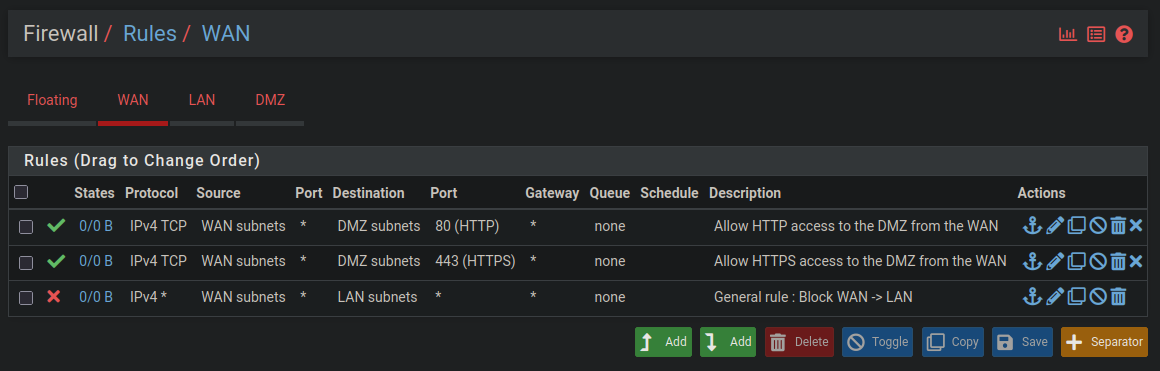
### WAN
Configure the following rules on the WAN interface:
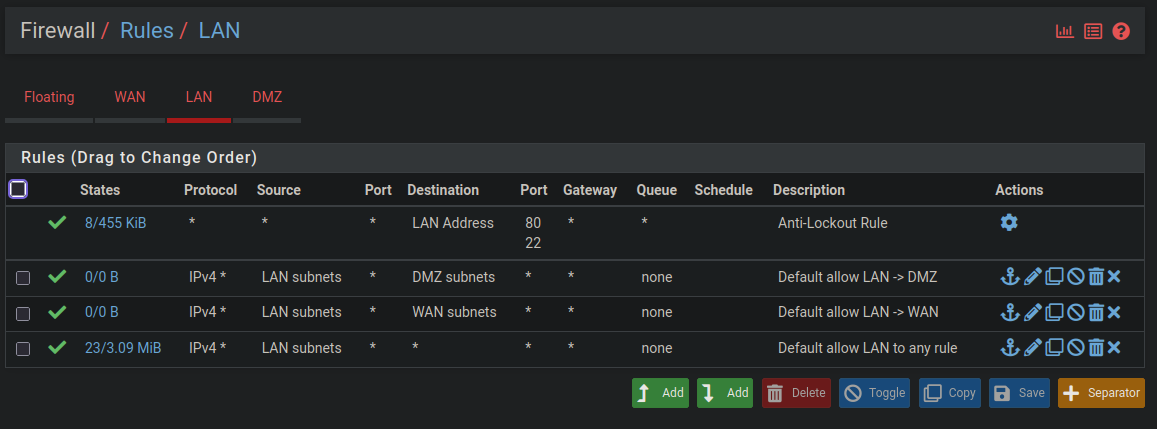
### LAN
Do the same for the LAN interface:
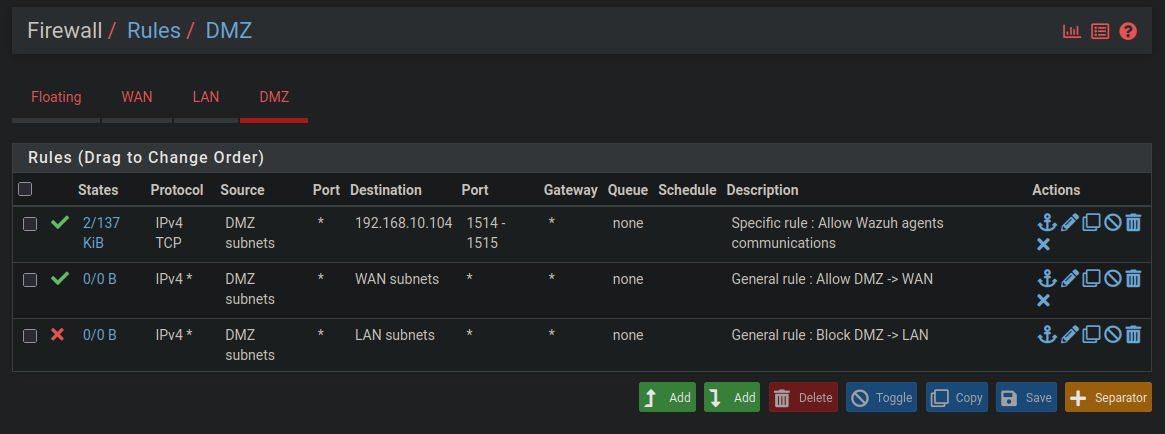
### DMZ
And finally for the DMZ:
## Network Connectivity Tests
All tests are available in the file `Docs/TESTS/pfSense.md`. See the "Network Connectivity Tests" section for more details.
Below is an example of the tests from the `Docs/TESTS/pfSense.md` file:
### WAN
**Objective**: Verify that traffic from the WAN (virtual) is correctly filtered, and that only authorized connections (e.g., HTTP via NAT) are possible.
Commands executed:
```bash
# Connection test to LAN-TEST-LIN
ping -c 4 192.168.10.100
# Connection test to LAN-TEST-LIN
ping -c 4 192.168.1.47
# Connection test to LAN-TEST-LIN
curl -I http://juice.lab
```
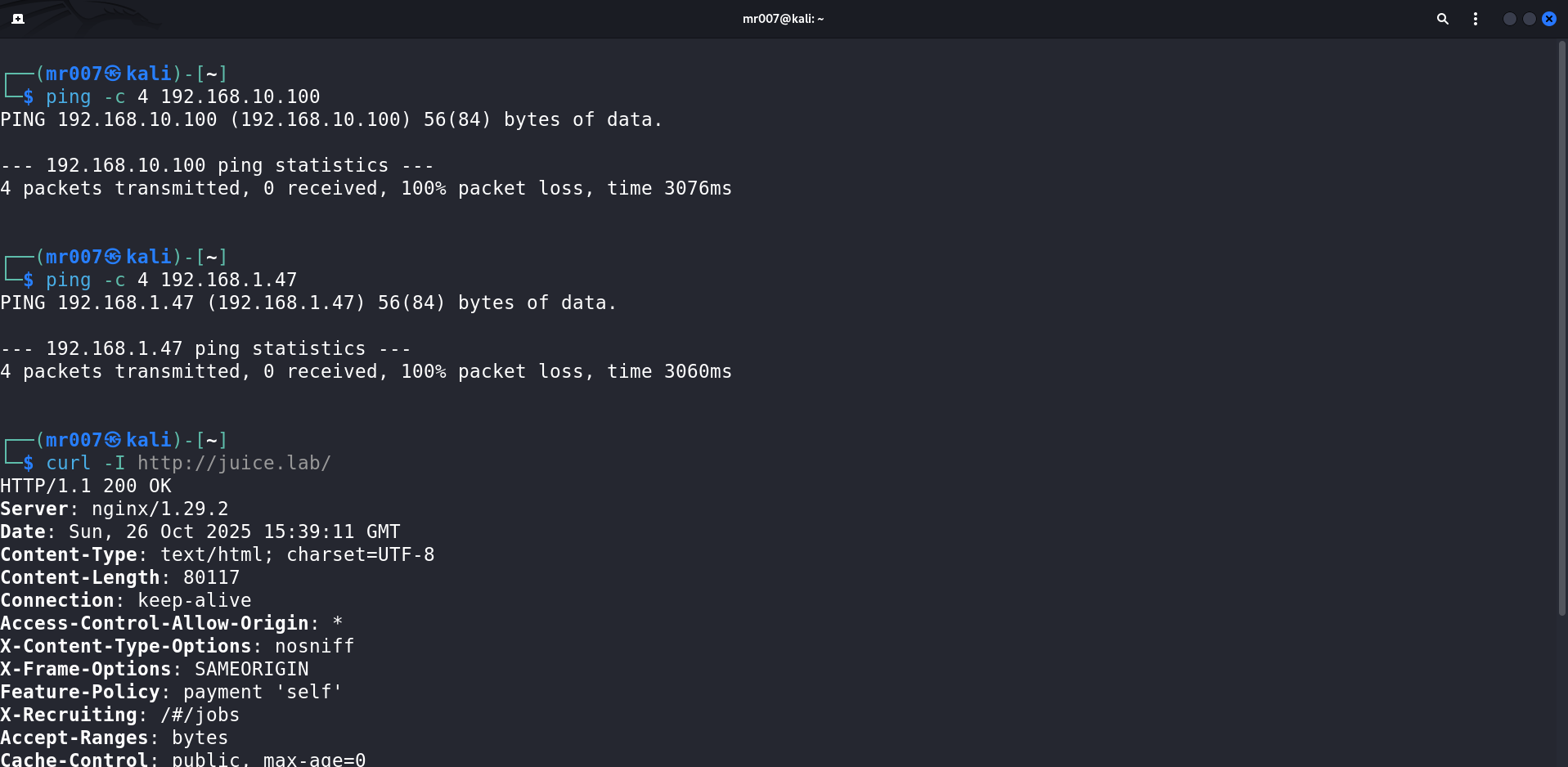
Connection test results:
- WAN → DMZ ✅ (NAT rule authorizes web HTTP traffic, see NAT section below)
- WAN → LAN ❌
Firewall rules work as expected on the WAN interface.
## NAT Rules
### WAN
Configure the following NAT rule to expose DMZ web services to the WAN:
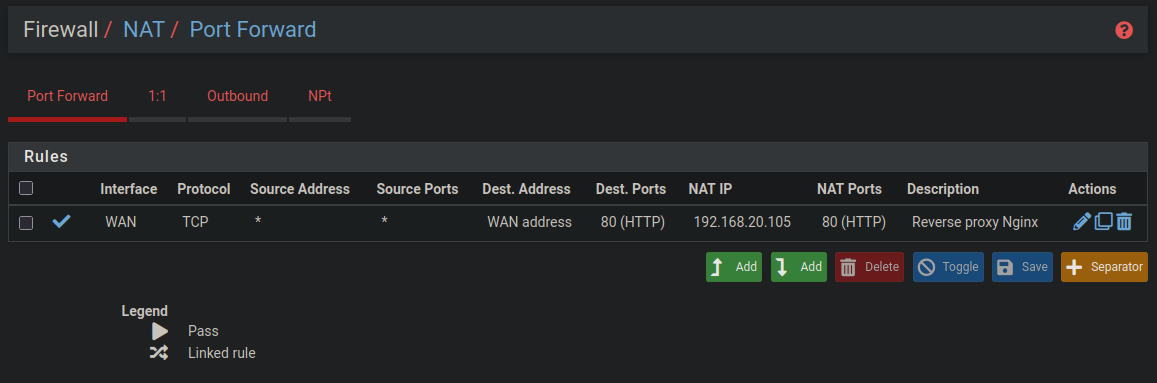
The objective of this NAT rule is to allow (restricted) access to DMZ web services from the WAN primarily for web pentesting.
This rule will redirect web access from the WAN to the requested resource (virtual host) using the Nginx reverse proxy located in the DMZ (`DMZ-WEB01-LIN`).
Below is an explanatory diagram of a request from the WAN to the OWASP Juice Shop lab:
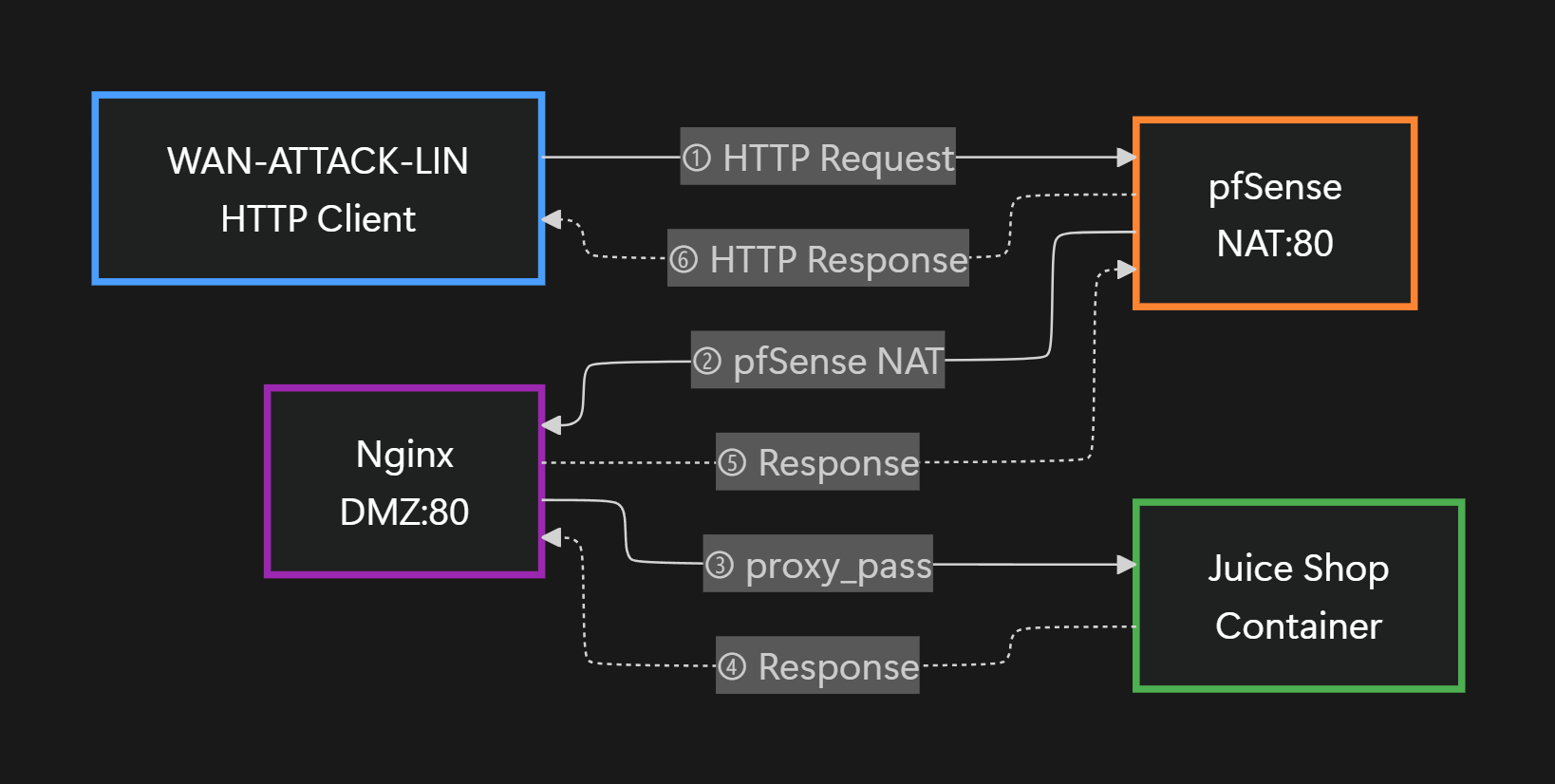
1. `WAN-ATTACK-LIN` makes an HTTP request to the virtual hostname (`http://juice.lab/`) corresponding to pfSense's WAN IP.
2. pfSense executes the NAT rule with authorized HTTP flow (port 80 to port 80 of `DMZ-WEB01-LIN`, i.e., to the Nginx reverse proxy).
3. The Nginx reverse proxy redirects the request to the concerned container (here the container named juice-shop).
4. The container processes the HTTP request then sends the corresponding HTTP response.
5. Then, the reverse proxy sends this request to pfSense (NAT).
6. Finally, pfSense returns the response to the concerned WAN machine.
> See the links at the bottom of the page for more resources on NAT as well as reverse proxies.
> **Note**: This mechanism applies in the same way for other web services exposed to the WAN (`http://webgoat.lab`, `http://ms2.lab`, etc.).
For now, **Lab4PurpleSec** only has this NAT rule.
> **Current Limitation**: Some services (e.g., GlassFish on Metasploitable3 Windows) perform automatic HTTP → HTTPS redirections. These redirections work from the LAN (direct access), but fail from the WAN because only port 80 is exposed via NAT. To allow HTTPS access from the WAN, an additional NAT rule (port 443) and SSL configuration on Nginx would be necessary.
## NAT Test Sample
All tests are available in the file `Docs/TESTS/pfSense.md`. See the "Network Connectivity Tests" section for more details.
# Suricata Installation
Suricata is an intrusion detection/prevention system (IDS/IPS) that allows monitoring network traffic and detecting suspicious activities. This section will explain how to install it on pfSense.
## Installation Steps via Web Interface
- Connect to the pfSense web interface at `http://` with your credentials (`admin:pfsense` by default)
- Then go to _System_ > _Package Manager_ > _Available Packages_
- Finally search for the package named `suricata` then install it
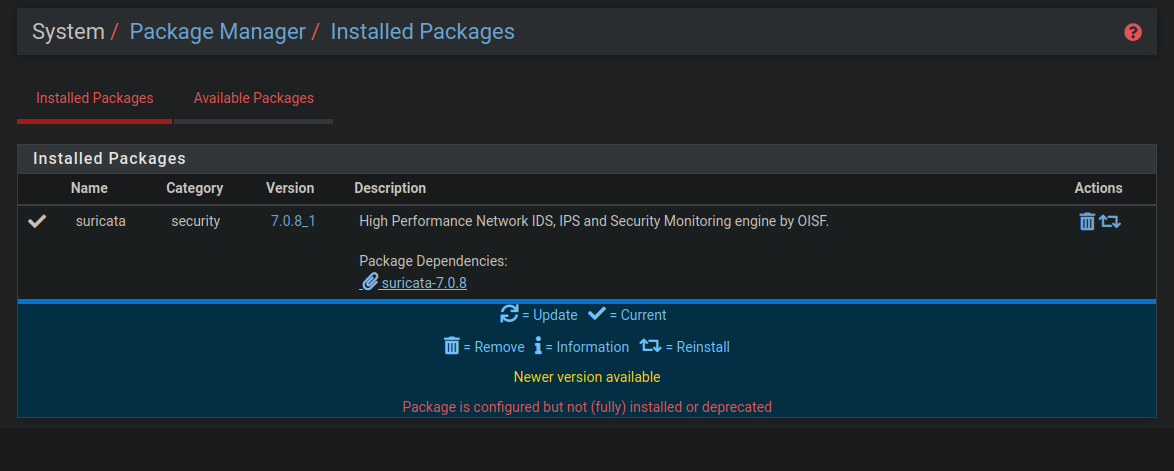
Final result:
The `suricata` package should appear among installed packages
# Suricata Configuration
This section details Suricata configuration to monitor traffic on LAN and DMZ interfaces.
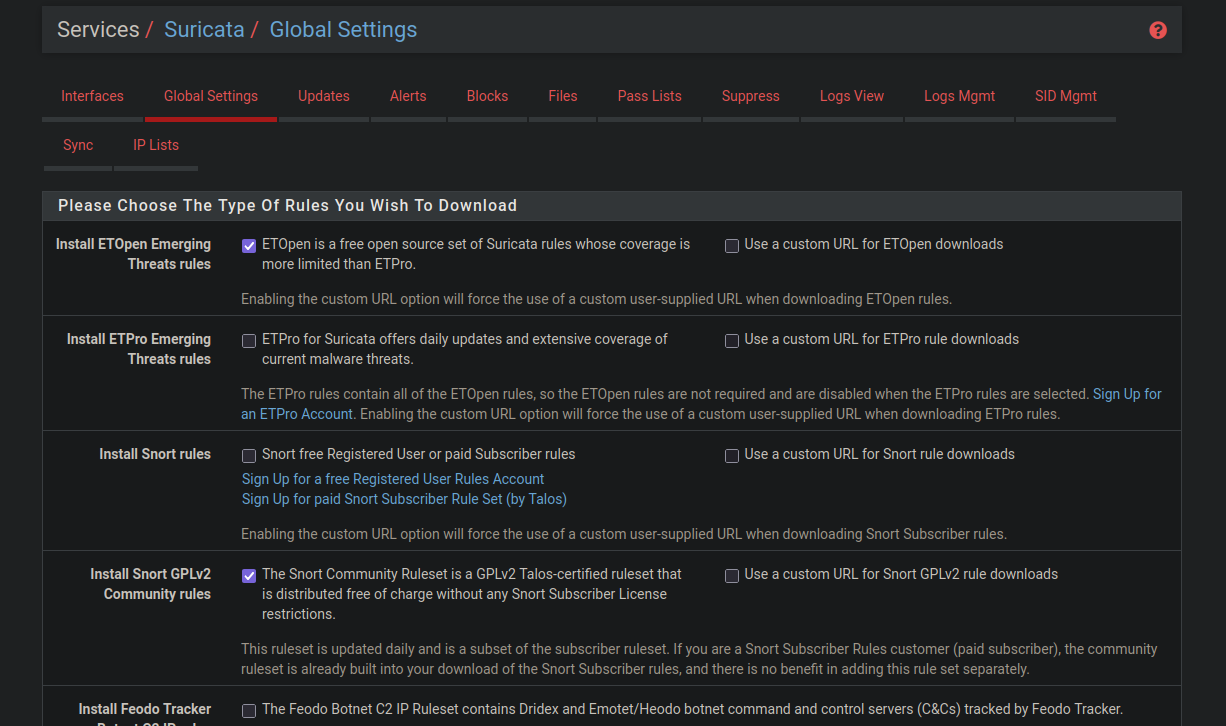
## General Settings (Rule Types)
Configure Suricata global settings to enable detection rules:
## Interfaces
Before configuring interfaces, add them to Suricata:
1. Go to _Services > Suricata_.
2. Add the 2 desired interfaces (LAN, DMZ).
3. You should obtain a similar result:
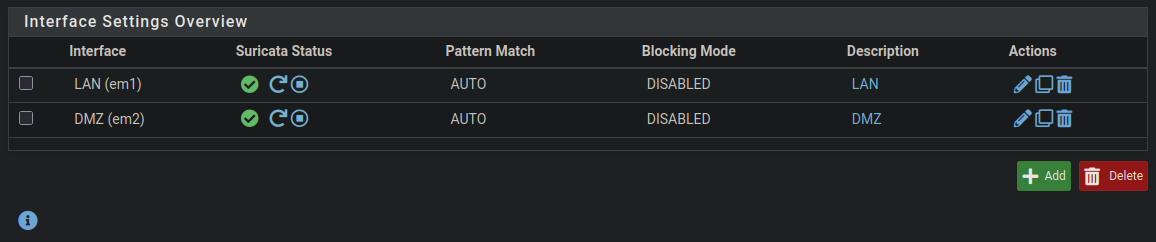
> Note: If interfaces are not started, you can start them now or during their configuration.
> Note: The WAN interface is not monitored by Suricata, as traffic there is encrypted and NATed. Analysis is concentrated on LAN and DMZ, where detection is more relevant.
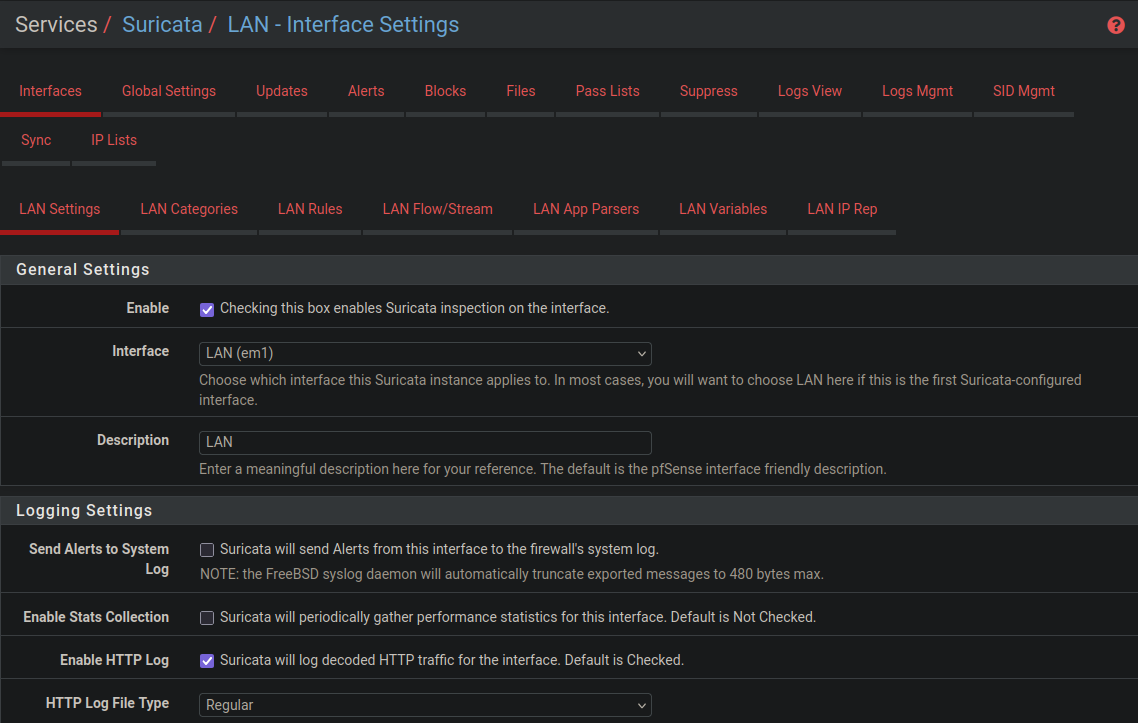
To configure an interface, click on the pencil icon.
Since both interfaces have the same parameters, you can configure the settings of one interface then duplicate it for the next one.
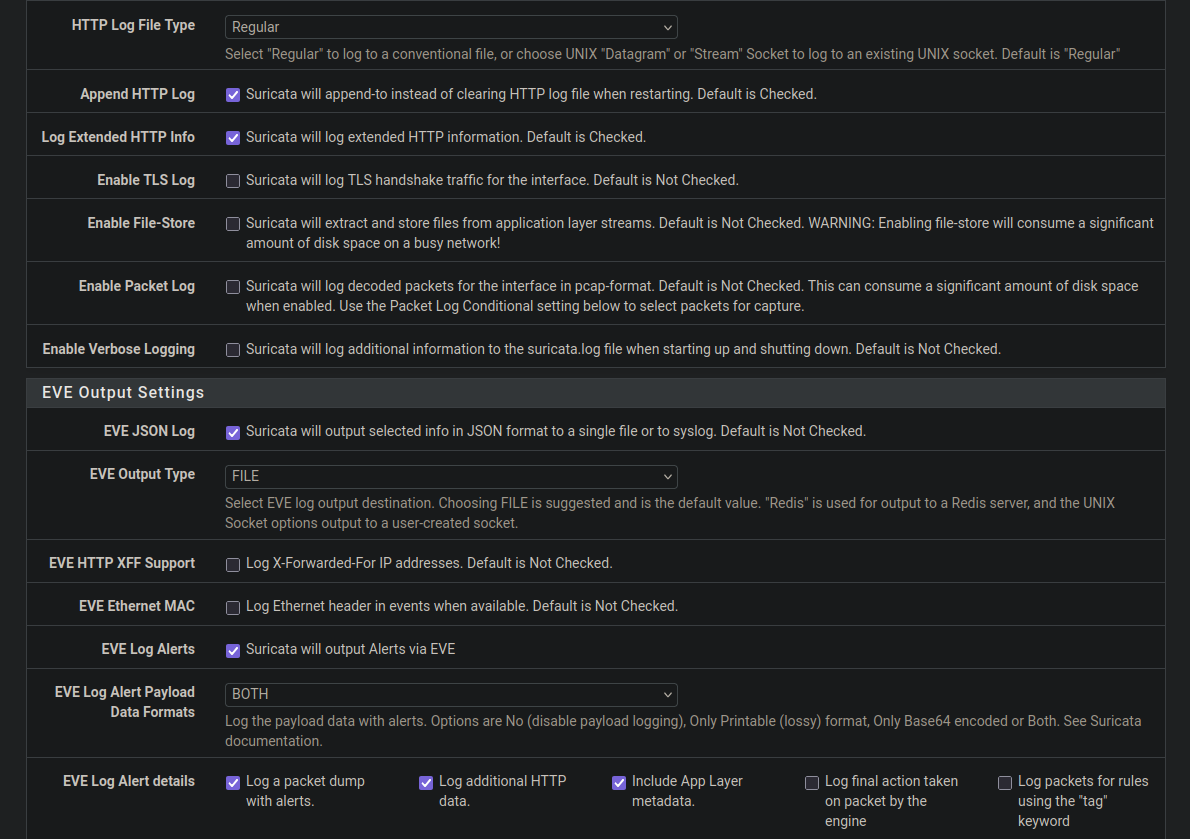
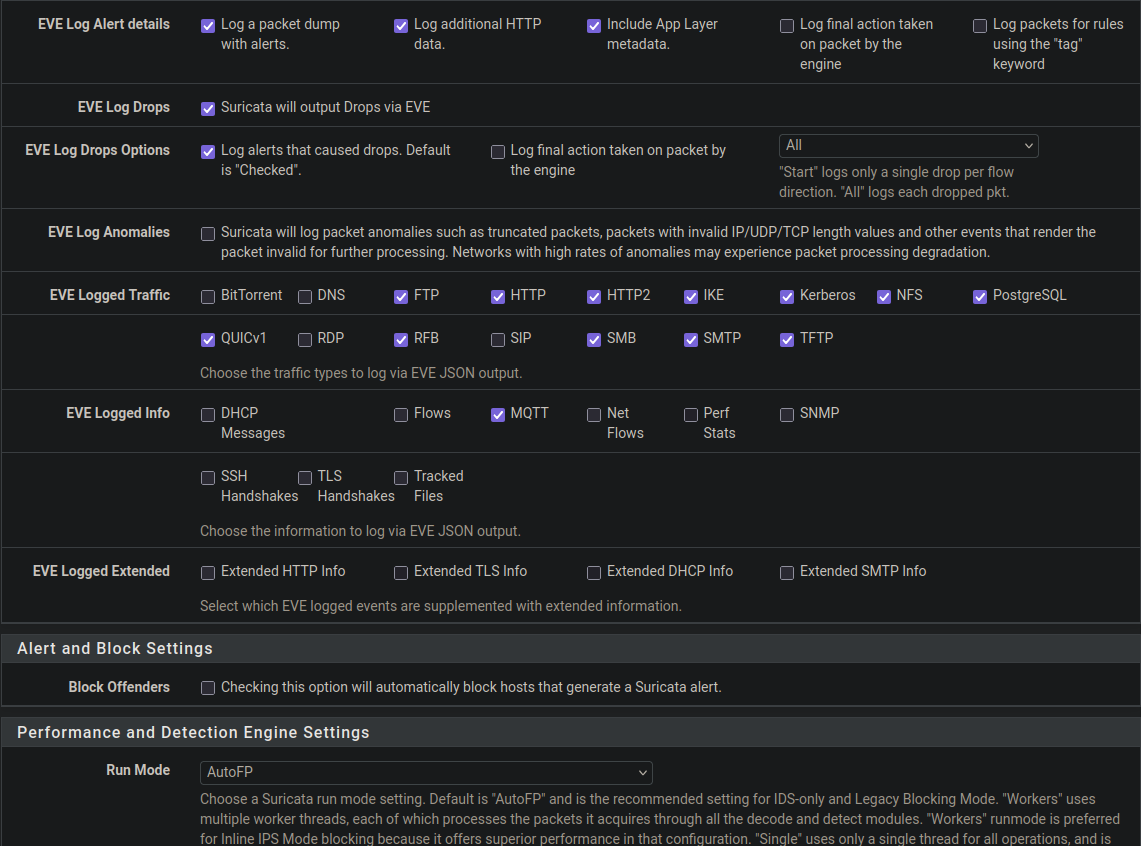
Make sure to configure your interfaces as in the following screenshots to have a functional Suricata base.
### Interface Settings (e.g., LAN)
Configure each interface with the following parameters (example for LAN):
### Alert Rules
Enable the following rule categories for a functional base:
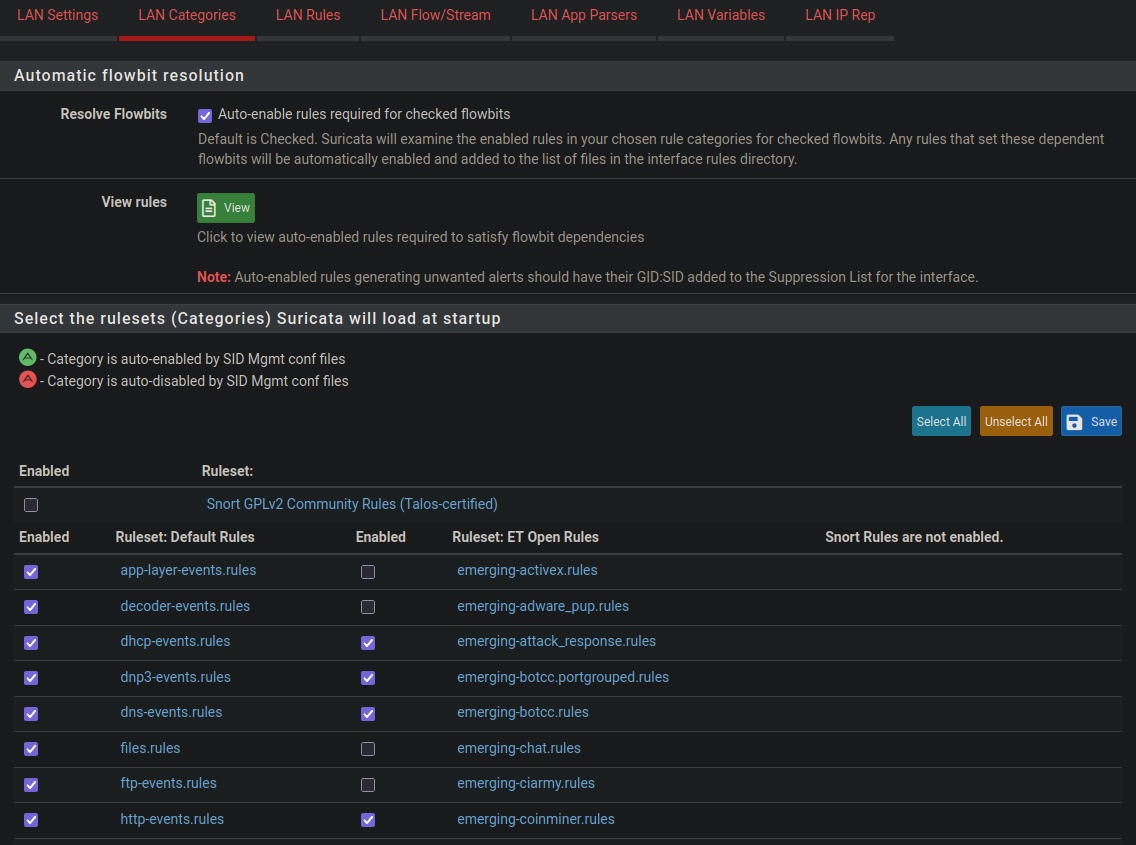
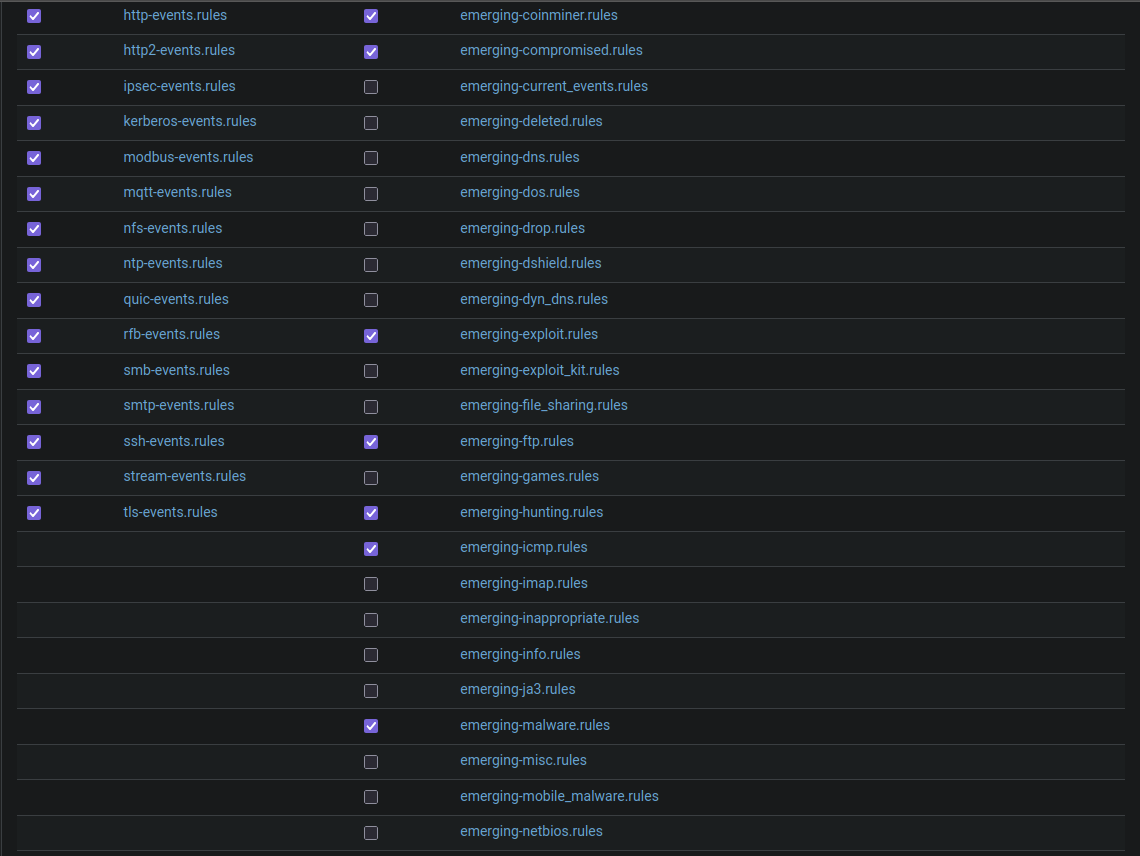
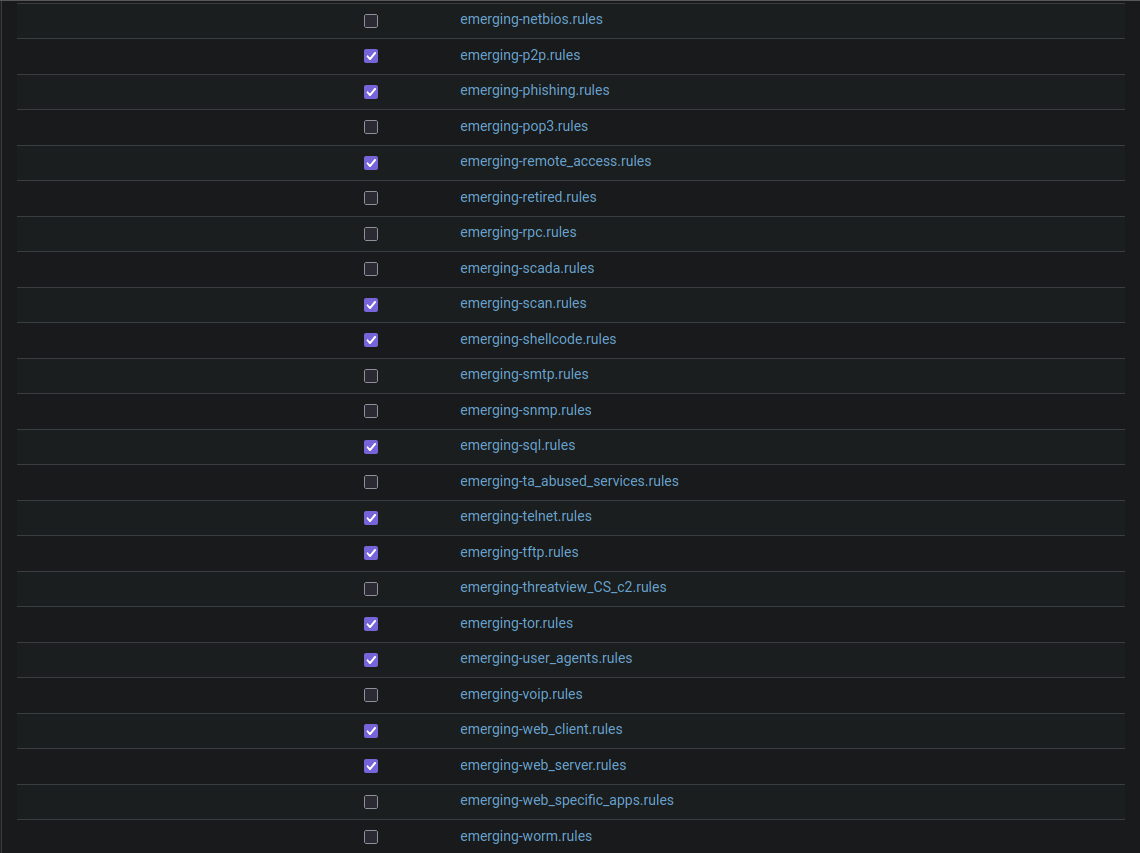
After performing the above configurations, verify that your detection rules are enabled under _ Rules_.
> **Note**: You can add/remove as many rules as you want, however avoid putting too many at risk of overloading the VM. The proposed configurations ensure a functional base for Suricata.
When you have finished configuring an interface, you can simply duplicate it then modify the active interface for the other interfaces.
# Suricata Tests
All Suricata and firewall/NAT rule validation tests are available in the `Docs/TESTS/` directory. See `Docs/TESTS/pfSense.md` for details.
Below is an example of the tests from the `Docs/TESTS/pfSense.md` file:
Alerts returned on web interface:
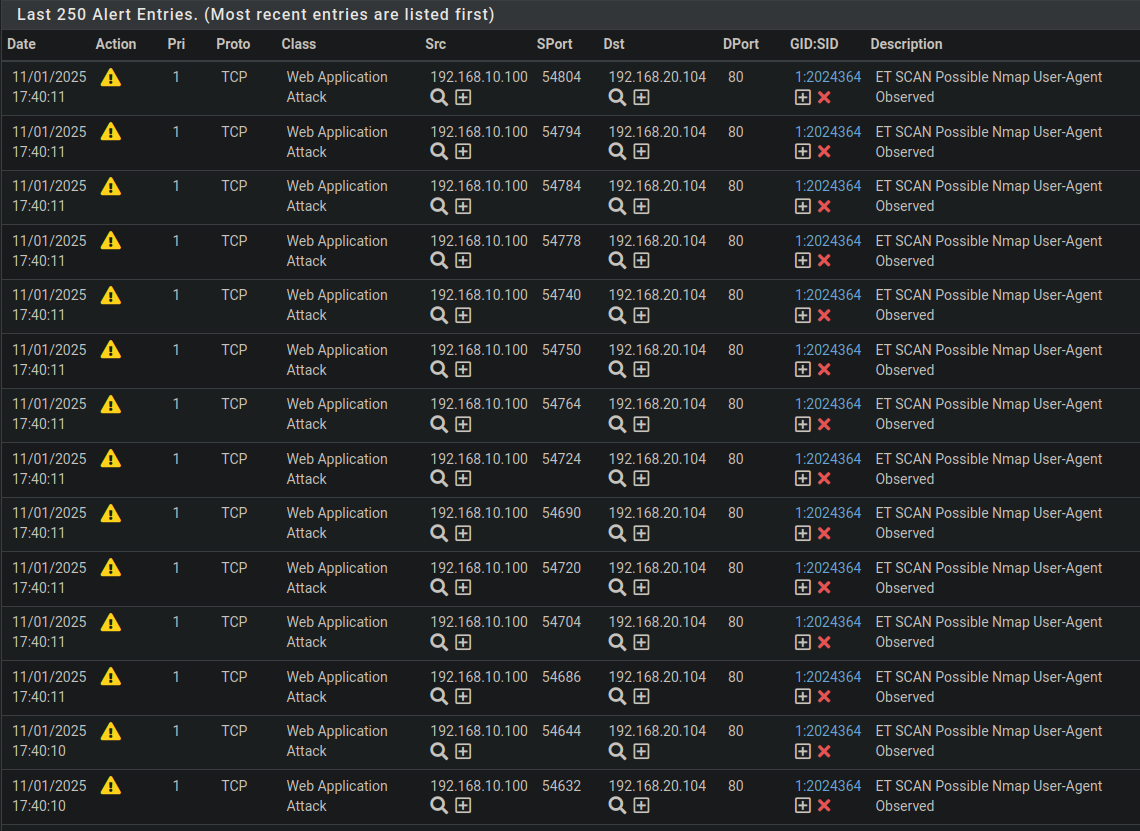
The results obtained demonstrate that Suricata is functional and capable of detecting intrusion attempts and simple malicious behaviors, in accordance with configured rules.
# Resources
- [Reverse Proxy Concept](https://www.cloudflare.com/learning/cdn/glossary/reverse-proxy/)
- [NAT Concept](https://www.vmware.com/topics/network-address-translation)
- [Suricata Documentation](https://suricata.readthedocs.io/en/latest/)