# GOAD-MINILAB
# Overview
This document presents the **tests performed** to validate the installation, operation, and integration of the **GOAD MINILAB version** lab into the **Lab4PurpleSec** LAN. The tests cover:
- **Network connectivity** between lab machines.
- **Active Directory service availability** (authentication, critical services).
- **Event forwarding** to Wazuh for monitoring and anomaly detection.
**Objective**: Confirm that the lab is operational and ready for offensive/defensive AD security scenarios.
# Table of Contents
1. [Overview](#overview)
2. [Prerequisites](#prerequisites)
3. [System Information Verification](#i-system-information-verification)
4. [Network Connectivity](#ii-network-connectivity)
5. [Domain Authentication](#iii-domain-authentication)
6. [Essential AD Service Operation](#iv-essential-ad-service-operation)
7. [Conclusion](#conclusion)
# Prerequisites
Before performing these tests, ensure that:
- **GOAD MINILAB** machines (`LAN-DC01-WIN`, `LAN-WS01-WIN`) are started and accessible.
- The following machines are available:
- `FW-PFSENSE`
- `DMZ-WEB01-LIN`
- `LAN-SIEM-LIN`
- `LAN-TEST-LIN`
- **Network segments** are configured according to the architecture (LAN, DMZ, WAN).
- **Wazuh** is configured to collect logs from GOAD machines.
- GOAD machines are accessible with default credentials: `vagrant:vagrant`.
After starting the previous machines, connect with `vagrant:vagrant` on both GOAD lab machines.
# I. System Information Verification
**Objective**: Confirm that GOAD machines are correctly configured and integrated into the `mini.lab` domain.
Let's check system information for our two machines:
## LAN-DC01-WIN
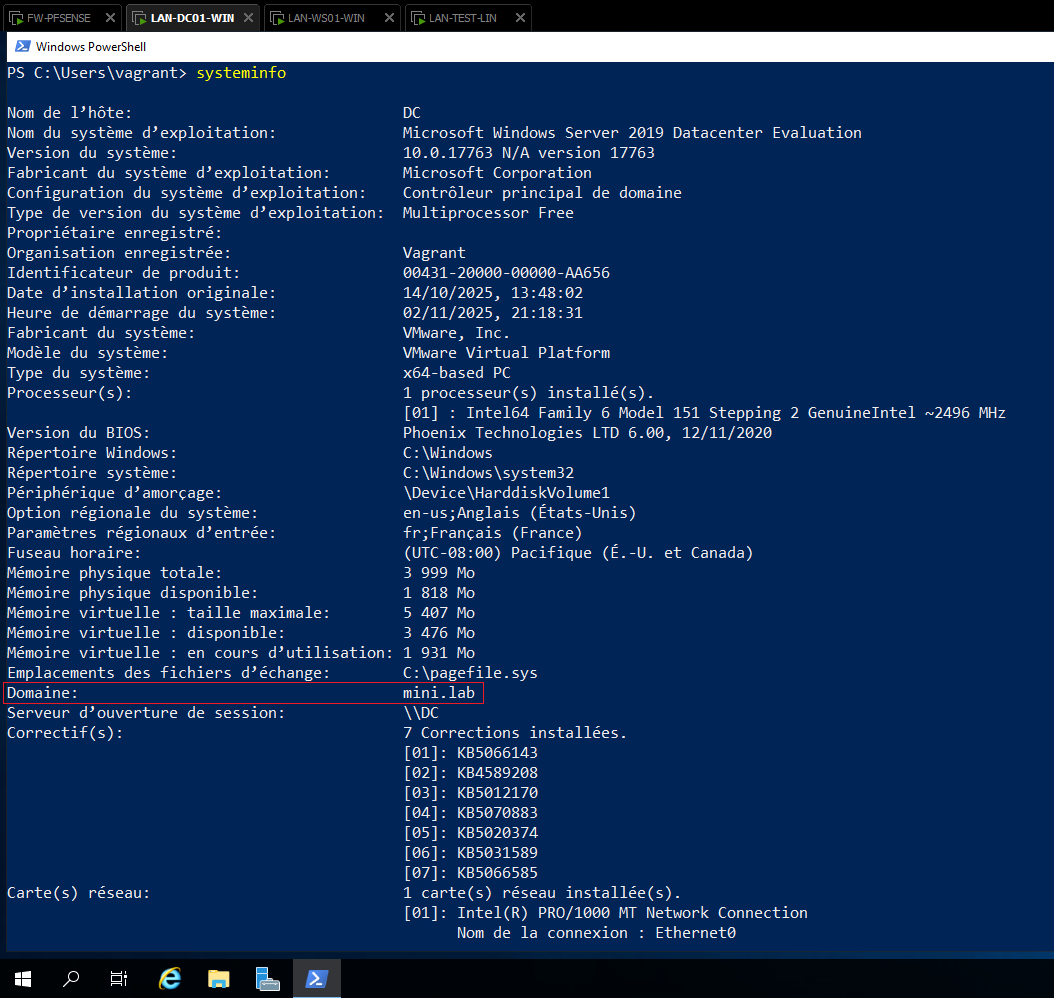
The information obtained seems consistent. We also notice that the DC is on the `mini.lab` domain.
Let's move on to the client workstation.
## LAN-WS01-WIN
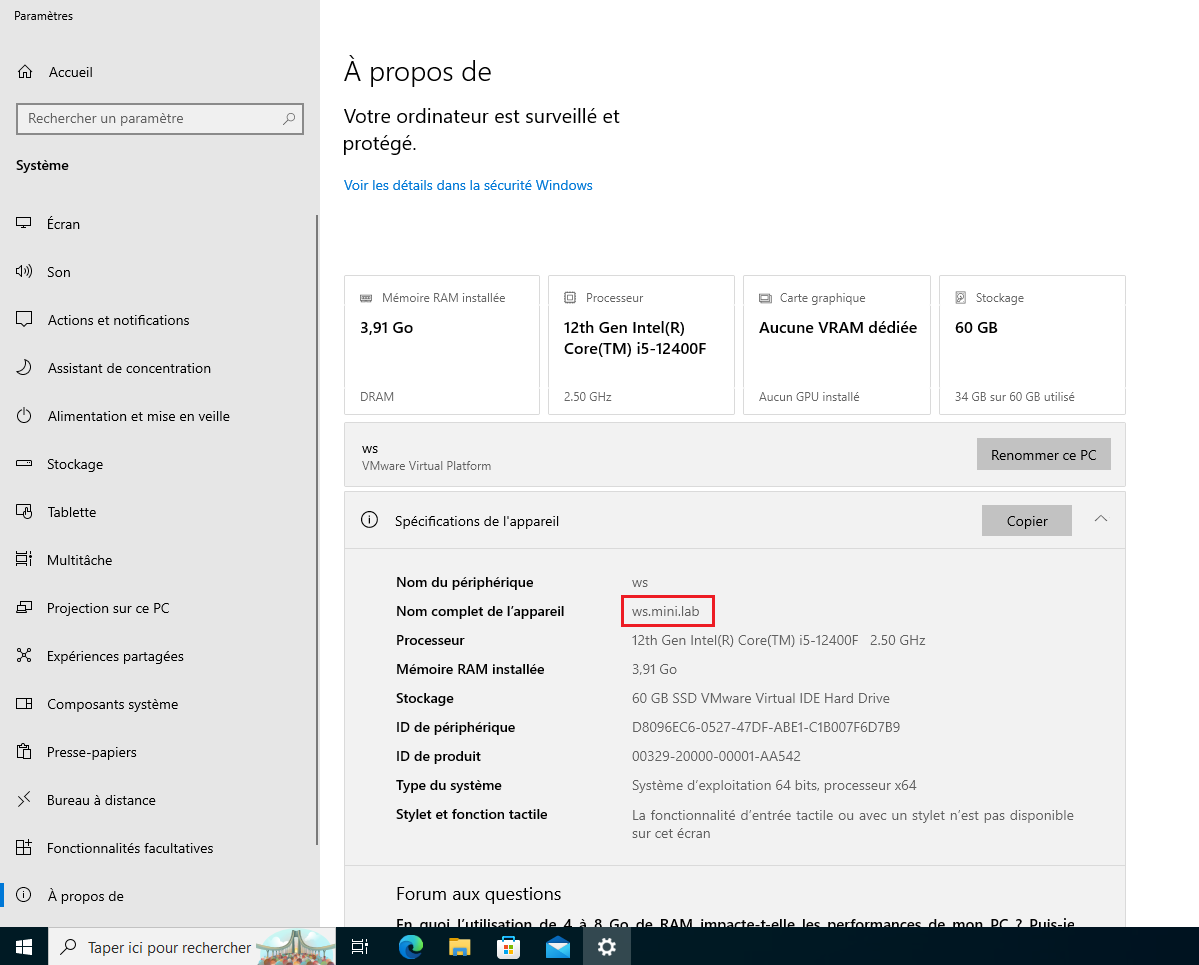
Similarly, on the client side, the information obtained so far is consistent. The workstation also appears to be on the `mini.lab` domain.
We can also execute the `systeminfo` command in a PowerShell terminal to obtain more information.
**Command executed:**
```powershell
systeminfo
```
Result obtained:
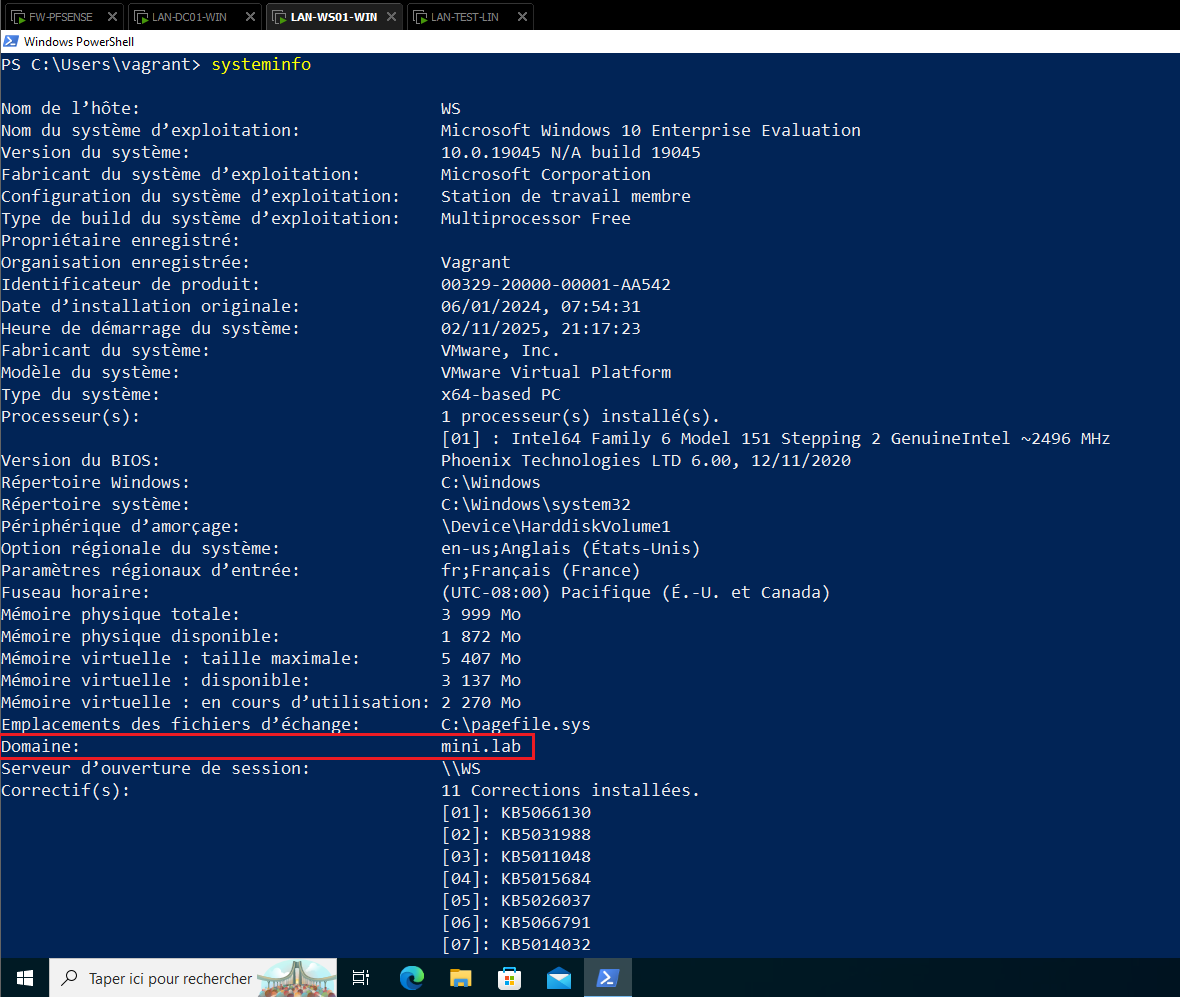
We also find the lab domain as expected, as well as other information (OS version, hostname, etc.)
**Conclusion**: Both machines are correctly configured and integrated into the `mini.lab` domain.
# II. Network Connectivity
**Objective**: Verify that all machines start without error and communicate on configured segments, according to pfSense firewall rules.
**Method**:
- Execute **successive pings** between machines:
- `DC01` ↔ `WS01` (internal domain communication).
- `GOAD` ↔ `LAN` (communication with main lab).
- `GOAD` ↔ `DMZ` (communication with demilitarized zone).
**Expected Results**:
- **Network segments** respond according to their defined network configuration (pfSense firewall rules).
## 1. Ping `DC01` ↔ `WS01`
**Test**: Verify connectivity between the domain controller and client workstation.
### LAN-DC01-WIN
**Command executed:**
```powershell
# Ping to LAN-WS01-WIN
ping 192.168.10.31
```
Result obtained:
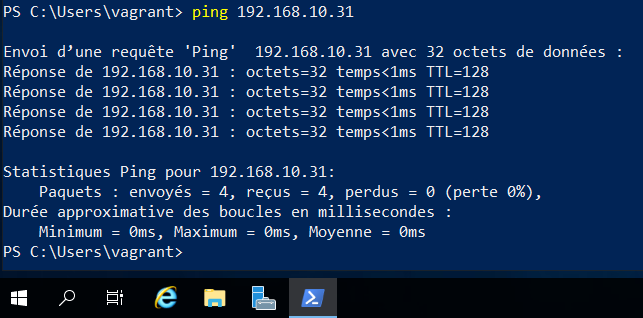
The `LAN-WS01-WIN` machine is therefore accessible from the `DC`.
### LAN-WS01-WIN
We can then perform the ping in reverse:
**Command executed:**
```powershell
# Ping to LAN-DC01-WIN
ping 192.168.10.30
```
Result obtained:
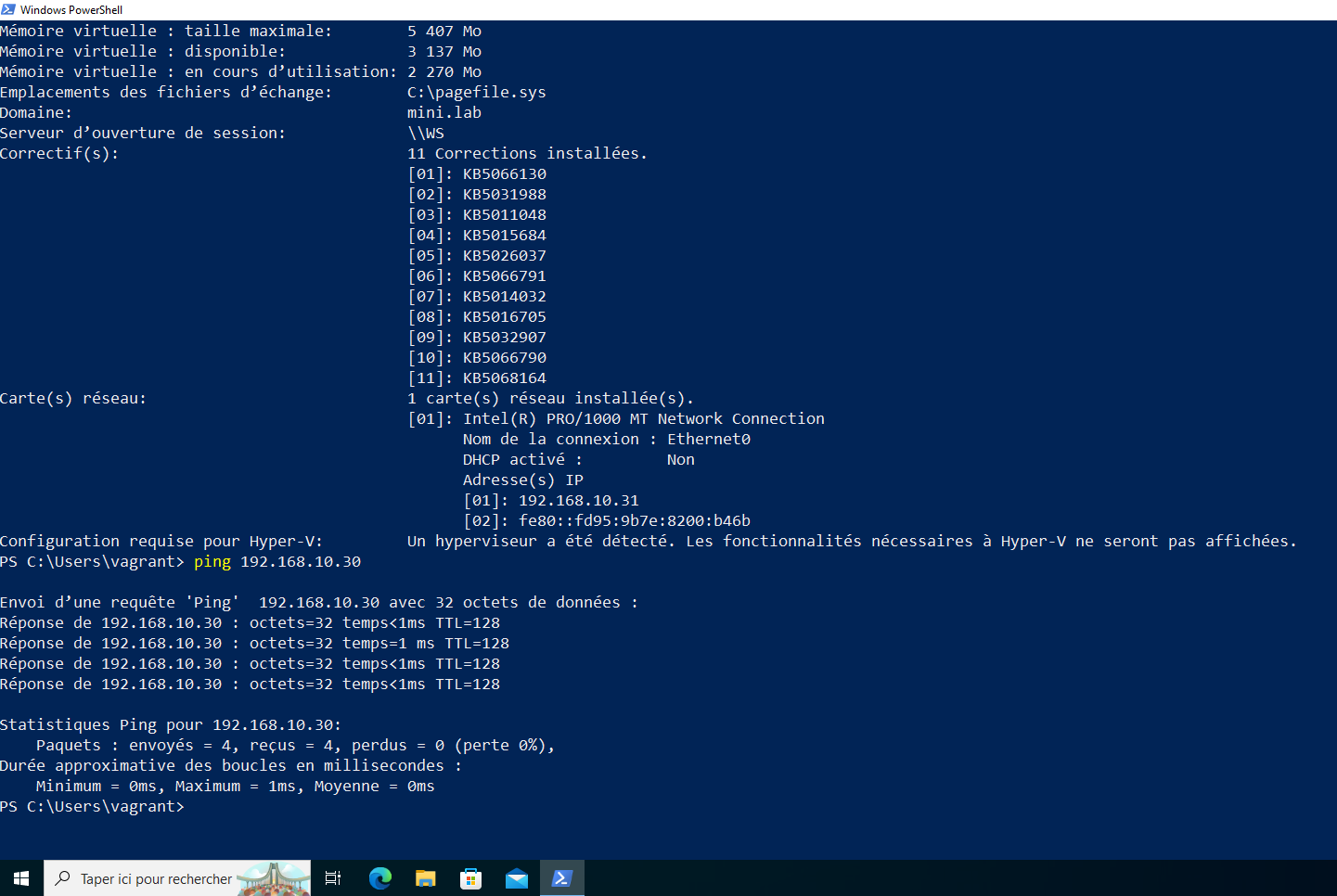
The `DC` is therefore also accessible from `LAN-WS01-WIN`.
**Result**: ✅ Internal domain communication is functional.
## 2. Ping `GOAD` ↔ `LAN`
**Test**: Verify connectivity between GOAD machines and the LAN segment (e.g., `LAN-TEST-LIN`).
### LAN-DC01-WIN
**Command executed:**
```powershell
# Ping to LAN-TEST-LIN
ping 192.168.10.100
```
Result obtained:
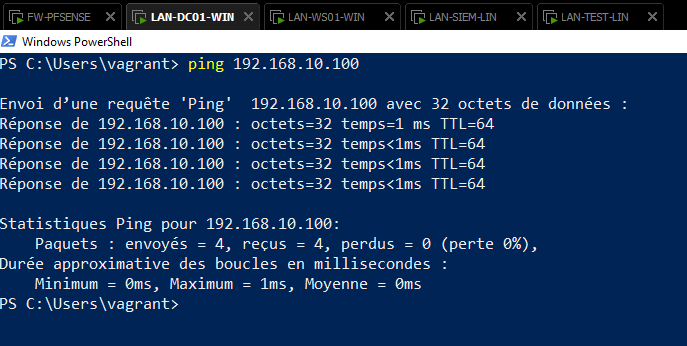
The `LAN-TEST-LIN` machine is therefore accessible from the `DC`.
### LAN-WS01-WIN
Similarly from `LAN-WS01-WIN`:
**Command executed:**
```powershell
# Ping to LAN-TEST-LIN
ping 192.168.10.100
```
Result obtained:
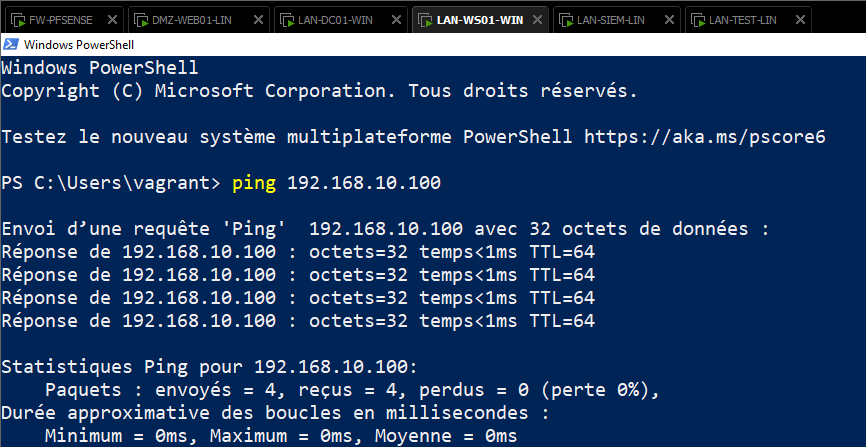
The `LAN-TEST-LIN` machine is therefore accessible from `LAN-WS01-WIN`.
### **LAN-TEST-LIN**
**Command executed:**
```powershell
# Ping to LAN-DC01-WIN (192.168.10.30)
ping LAN-DC01-WIN
# Ping to LAN-WS01-WIN (192.168.10.31)
ping LAN-WS01-WIN
```
Result obtained:
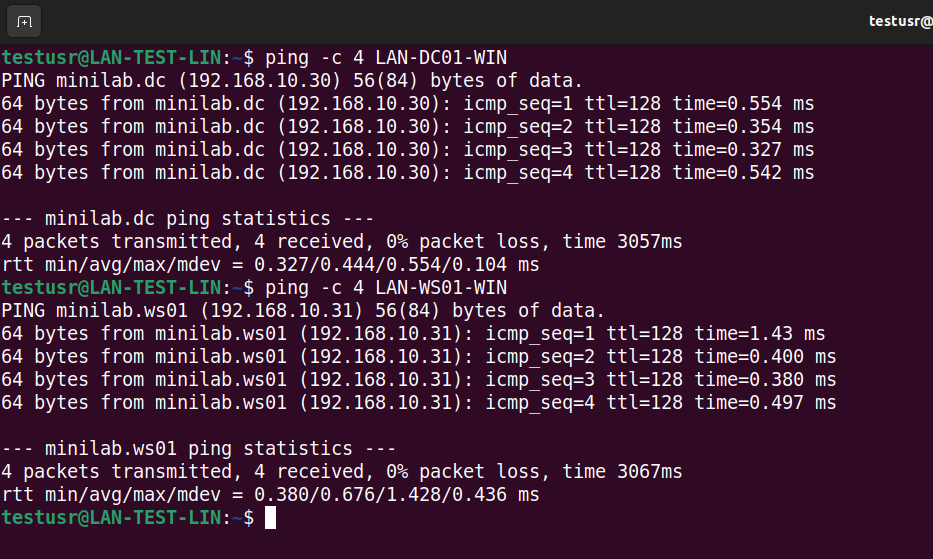
The GOAD lab is therefore also accessible from `LAN-TEST-LIN`.
**Result**: ✅ Communication between GOAD and the LAN segment is operational.
## 3. Ping `DC01` ↔ `DMZ`
**Test**: Verify connectivity between GOAD machines and the DMZ (e.g., `DMZ-WEB01-LIN`).
### LAN-DC01-WIN
**Command executed:**
```powershell
# Ping to DMZ-WEB01-LIN
ping 192.168.20.105
```
Result obtained:
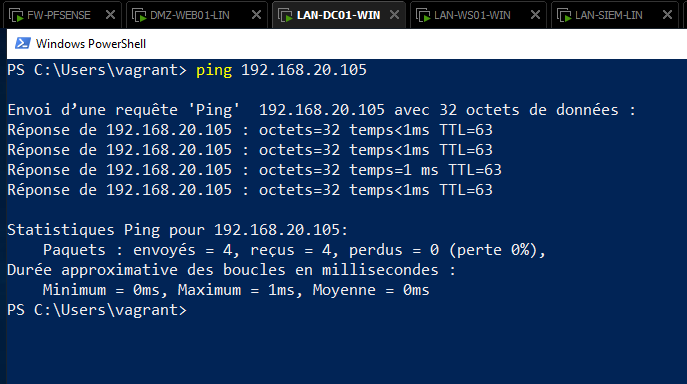
The `DMZ-WEB01-LIN` machine is therefore accessible from the `DC`.
### LAN-WS01-WIN
Similarly from `LAN-WS01-WIN`:
**Command executed:**
```powershell
# Ping to DMZ-WEB01-LIN
ping 192.168.20.105
```
Result obtained:
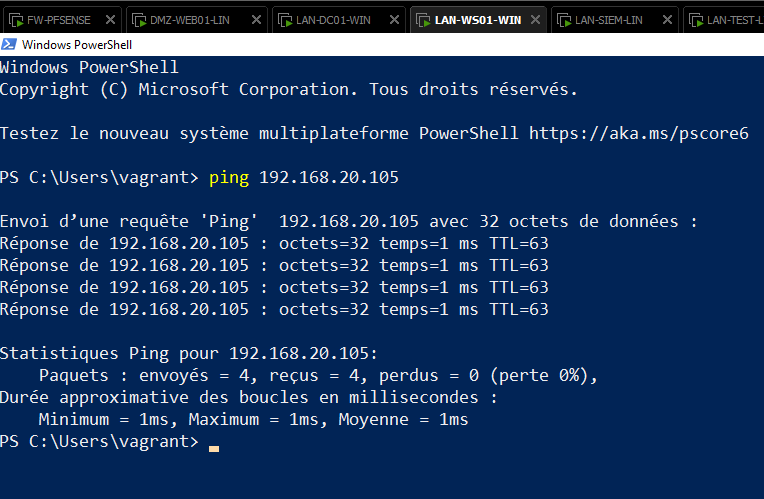
The `DMZ-WEB01-LIN` machine is therefore accessible from `LAN-WS01-WIN`.
**Result**: ✅ Communication between GOAD and the DMZ conforms to firewall rules (unidirectional access from GOAD to DMZ).
### DMZ-WEB01-LIN
**Command executed:**
```powershell
# Ping to LAN-DC01-WIN (192.168.10.30)
ping LAN-DC01-WIN
# Ping to LAN-WS01-WIN (192.168.10.31)
ping LAN-WS01-WIN
```
Result obtained:
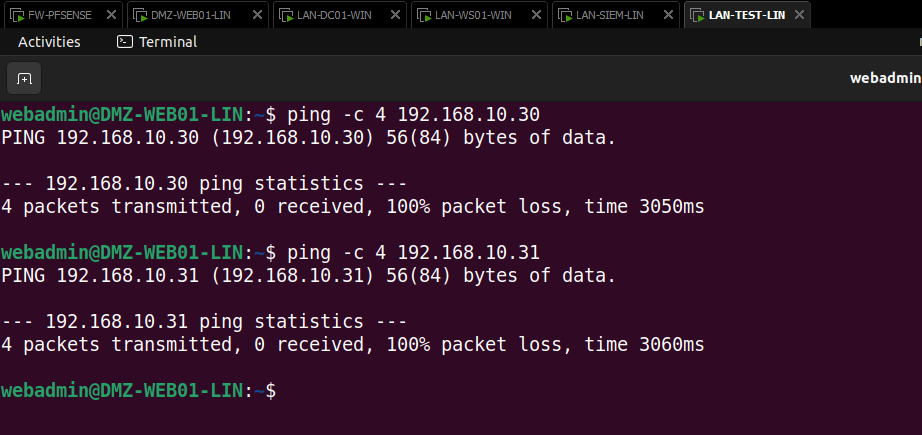
The GOAD lab is therefore, as expected, not accessible from `DMZ-WEB01-LIN` and from the DMZ in general.
> **Note**: For complete segment validation, it is recommended to test connectivity with all machines in the concerned segment. Given that the Wazuh server and the `LAN-TEST-LIN` machine are accessible, we will consider that the entire LAN segment is accessible. Same for the DMZ.
# III. Domain Authentication
**Objective**: Validate that user authentication on the Active Directory domain works correctly and that events are forwarded to Wazuh.
**Steps**:
1. **User connection on Windows client machine** (`WS01`):
- Open a session with a valid domain account (e.g., `mini.lab\\alice`, password: `spongebob`).
- **Expected result**: Connection success without error message.
2. **Authentication log validation**:
- Verify in **Wazuh** (Events tab) the presence of connection events.
- **Expected result**: Connection and disconnection logs with details (user, time, source IP).
3. **Complementary tests**:
- **Disconnection**:
- Validate the appearance of the corresponding event in Wazuh logs.
- **Failed connection attempt** (wrong password):
- Verify the generation of a failure alert in Wazuh logs.
**Global Expected Result**:
- **Operation** of AD authentication mechanisms in the GOAD MINILAB environment.
## 1. Domain Connection (Successful)
**Test**: Connect to the domain with a valid account (`mini.lab\\alice`, password: `spongebob`).
Let's try to connect to the `mini.lab` domain on `LAN-WS01-WIN` with an authorized account:
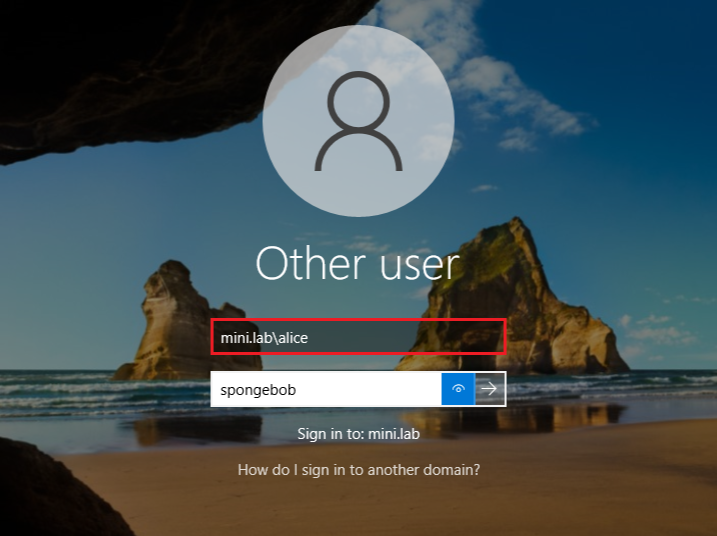
> Note on credentials: the following tests will be performed with the `alice` account and its default GOAD password. Feel free to adapt your credentials if you modified them during GOAD installation (cf. `Docs/SETUP/GOAD_setup.md`).
Connection verification:
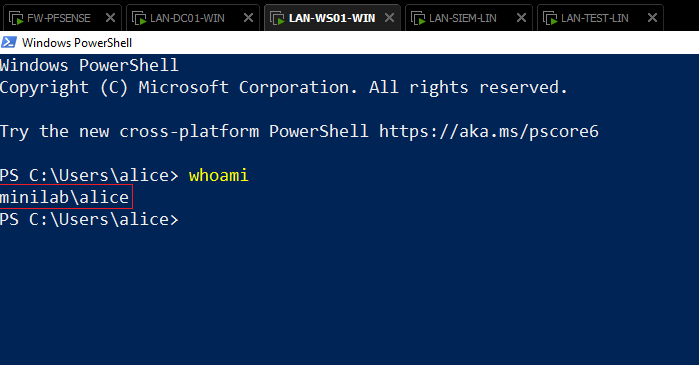
We are connected to the `mini.lab` domain under the `alice` user.
Let's now verify if the authentication was forwarded to Wazuh logs!
## 2. Wazuh Log Verification
**Test**: Disconnect from the domain and verify event forwarding.
Before starting Wazuh tests, verify that you have installed all lab agents.
You should obtain a similar result:
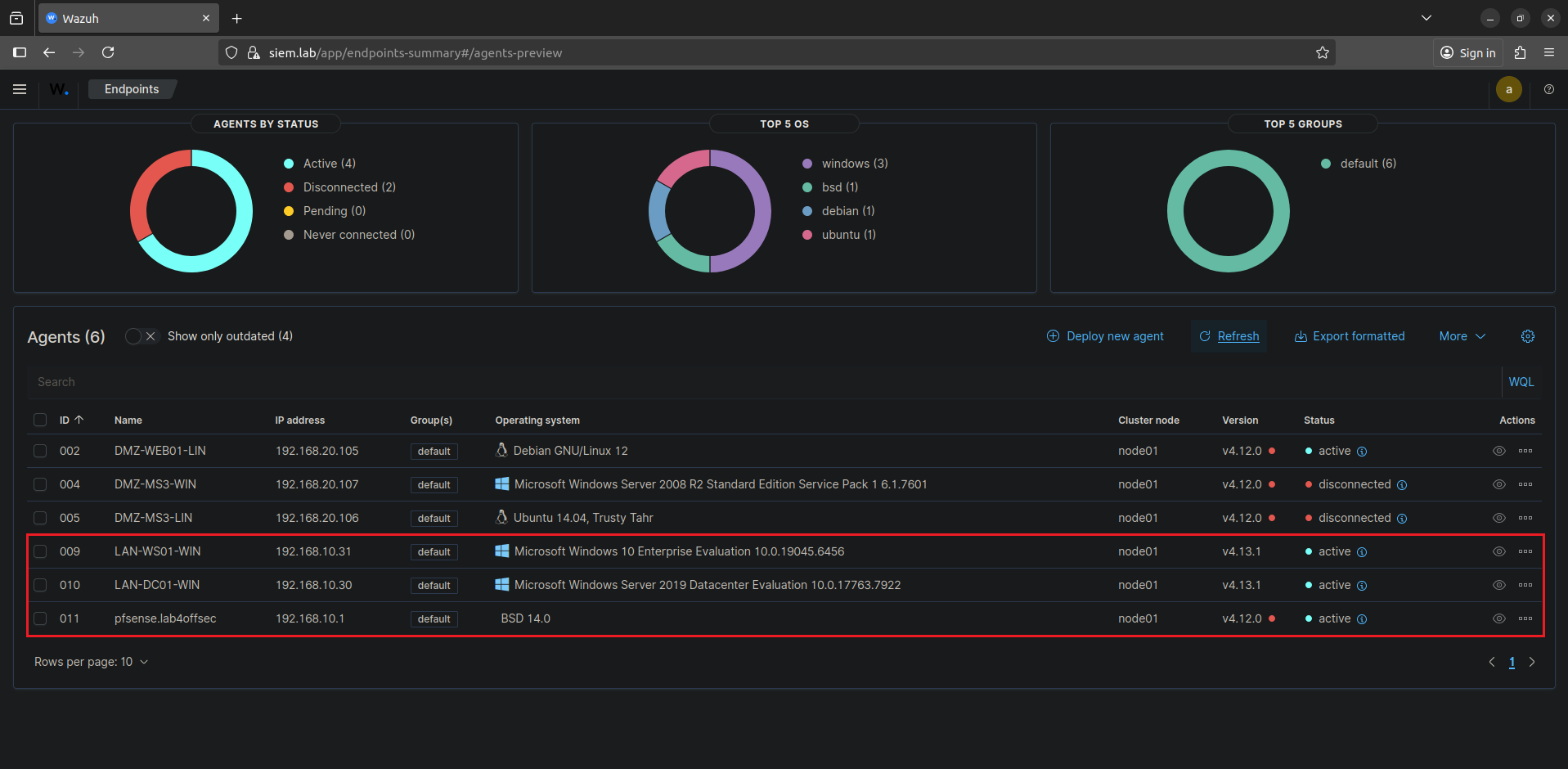
The agents highlighted in red are those we will work with.
By searching for the term `alice` in logs associated with the `LAN-WS01-WIN` agent, we obtain the following result:
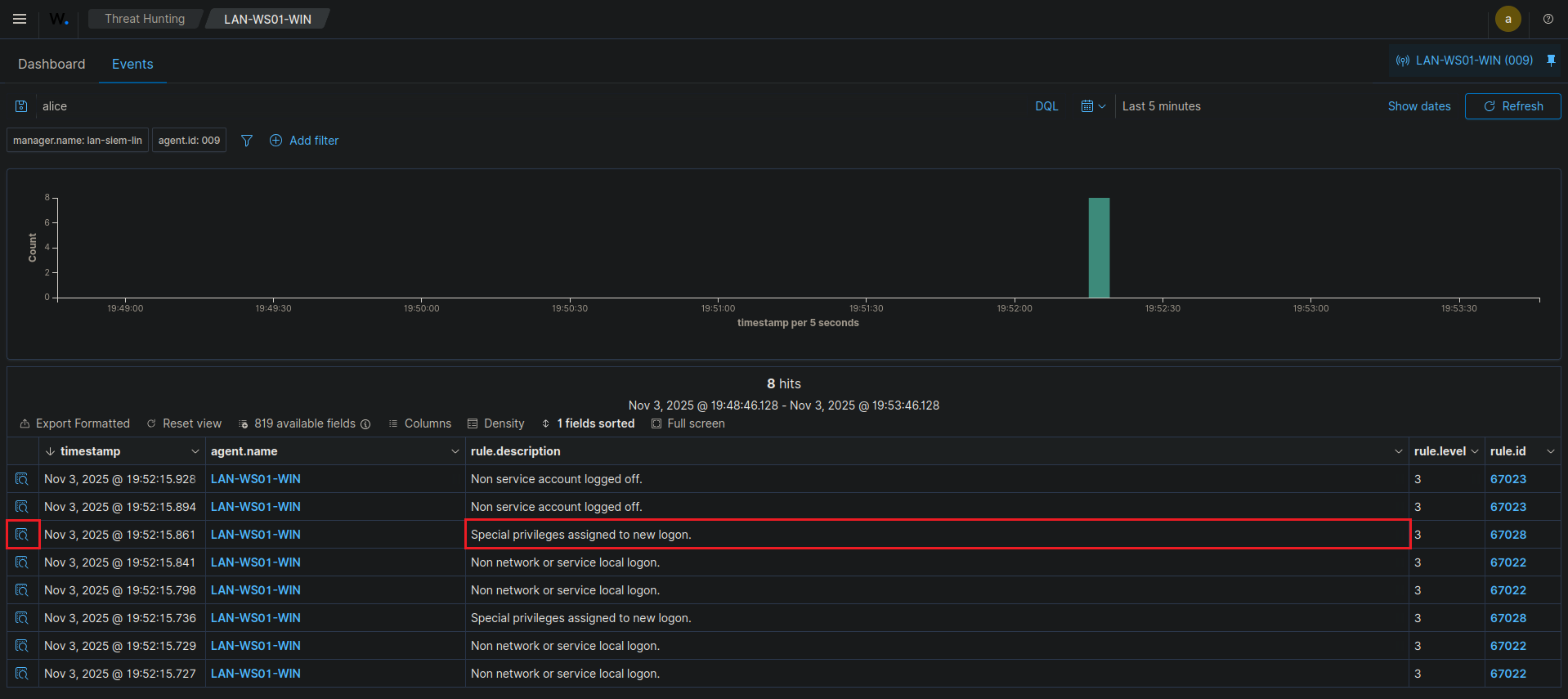
To obtain more details on the 3rd log (which seems to correspond to an authentication), click on the log inspection icon (highlighted in red above).
We thus obtain:
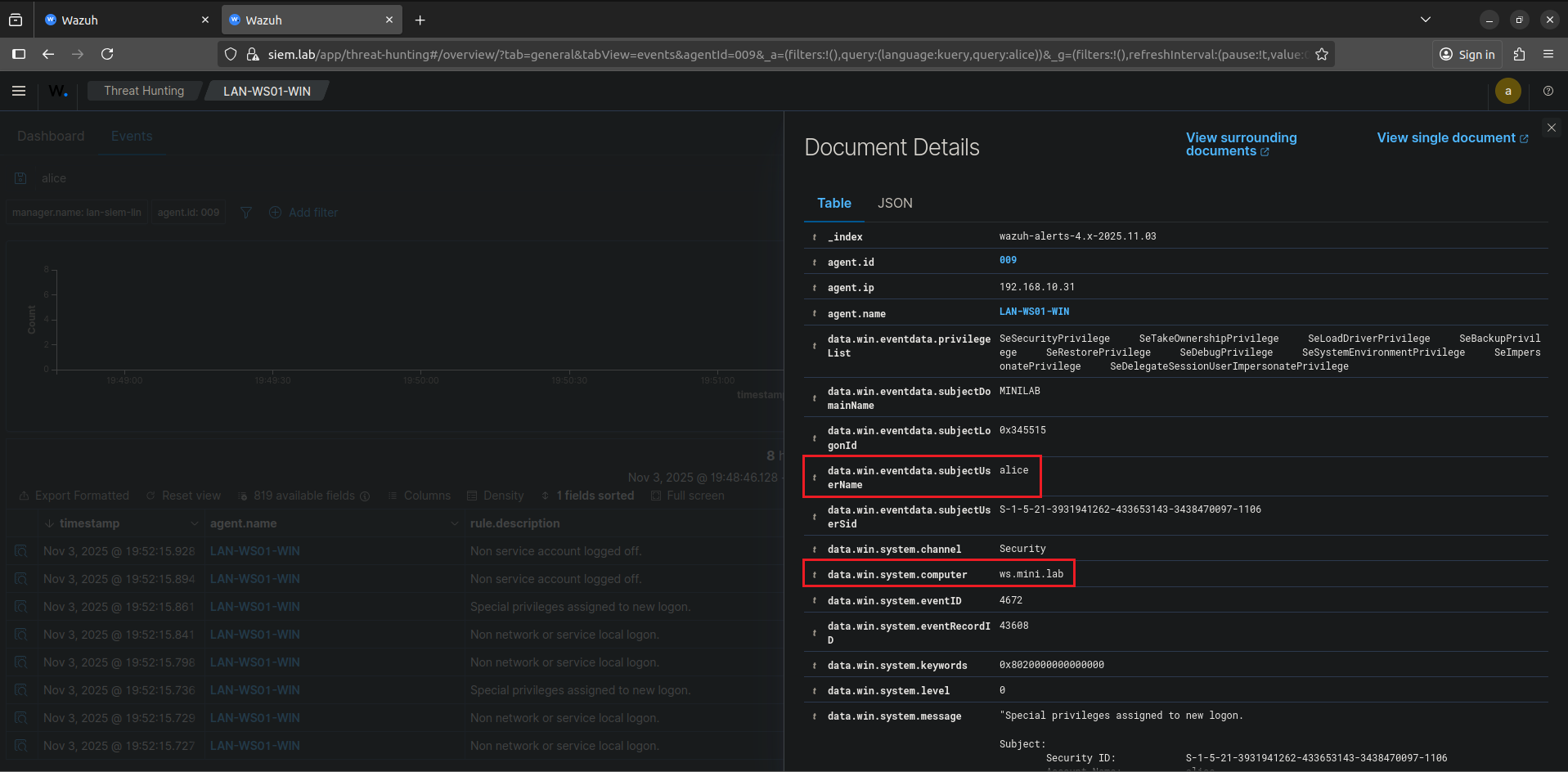
Authentication has been forwarded to Wazuh logs (and system by deduction).
Moreover, the forwarded information seems consistent.
We can therefore conclude that, so far, our architecture seems to work.
**Conclusion**: ✅ Authentication is functional and logs are correctly forwarded.
Let's now try to disconnect from the domain.
## 3. Domain Disconnection
**Test**: Disconnect from the domain and verify event forwarding.
Let's simply disconnect from the `mini.lab` domain with the `alice` user:
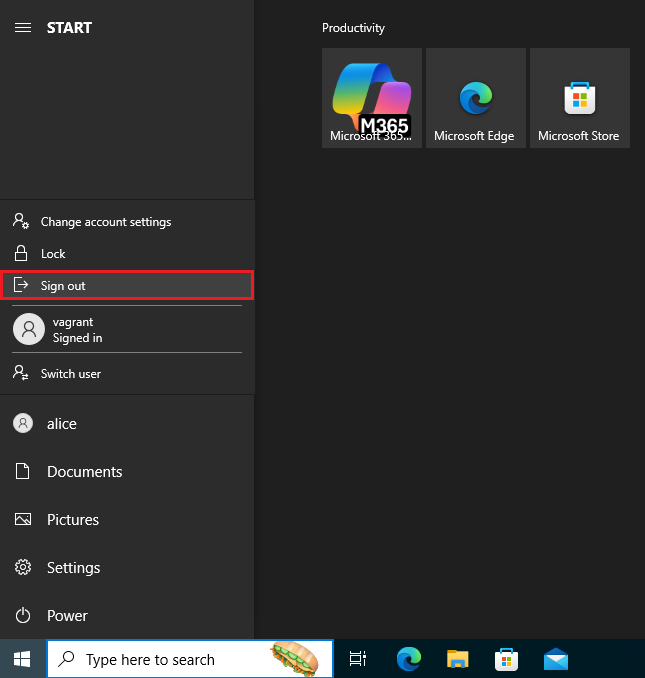
As before, let's look at Wazuh logs:
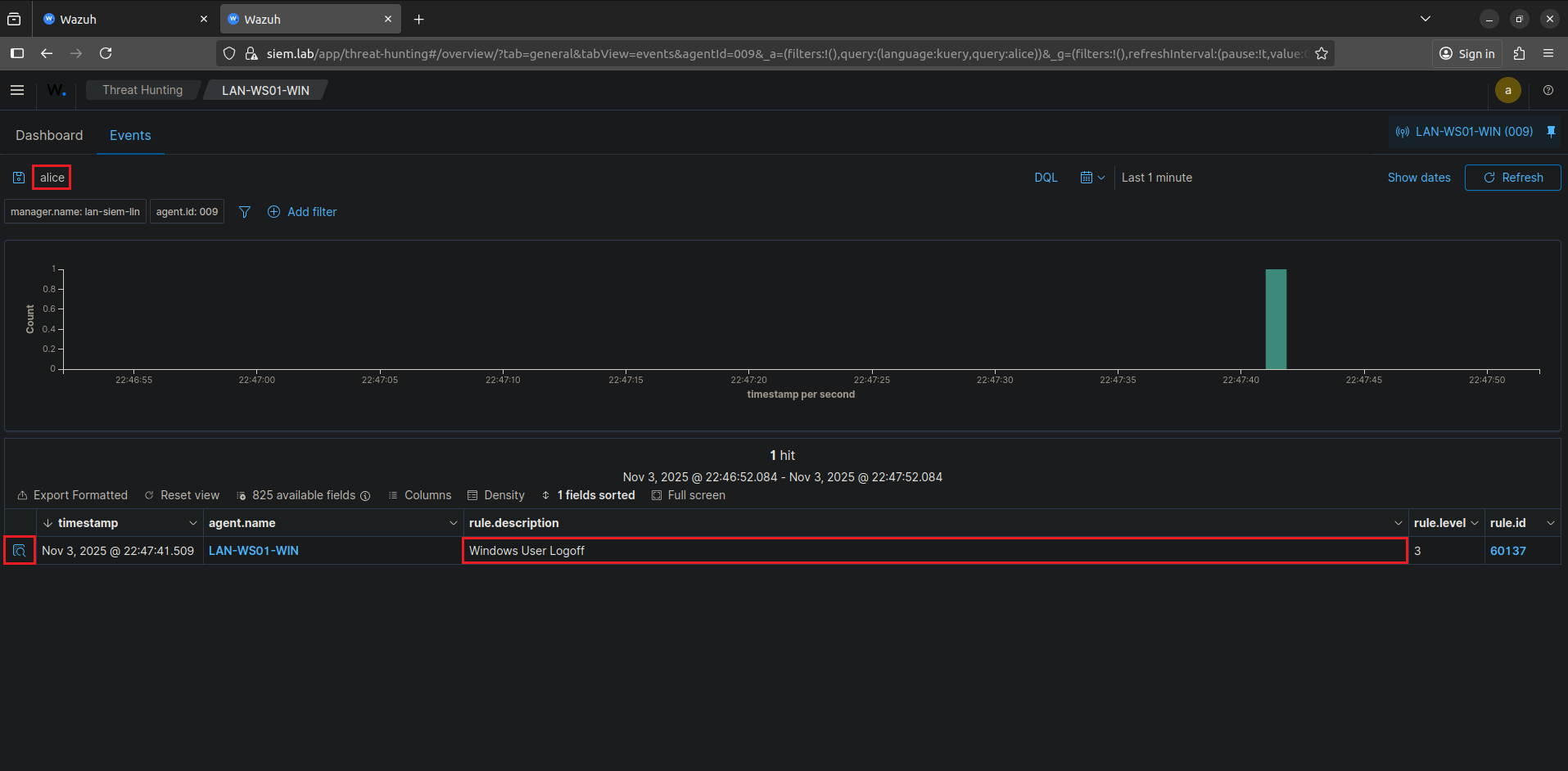
Good, we find an event associated with our disconnection.
Log details available:
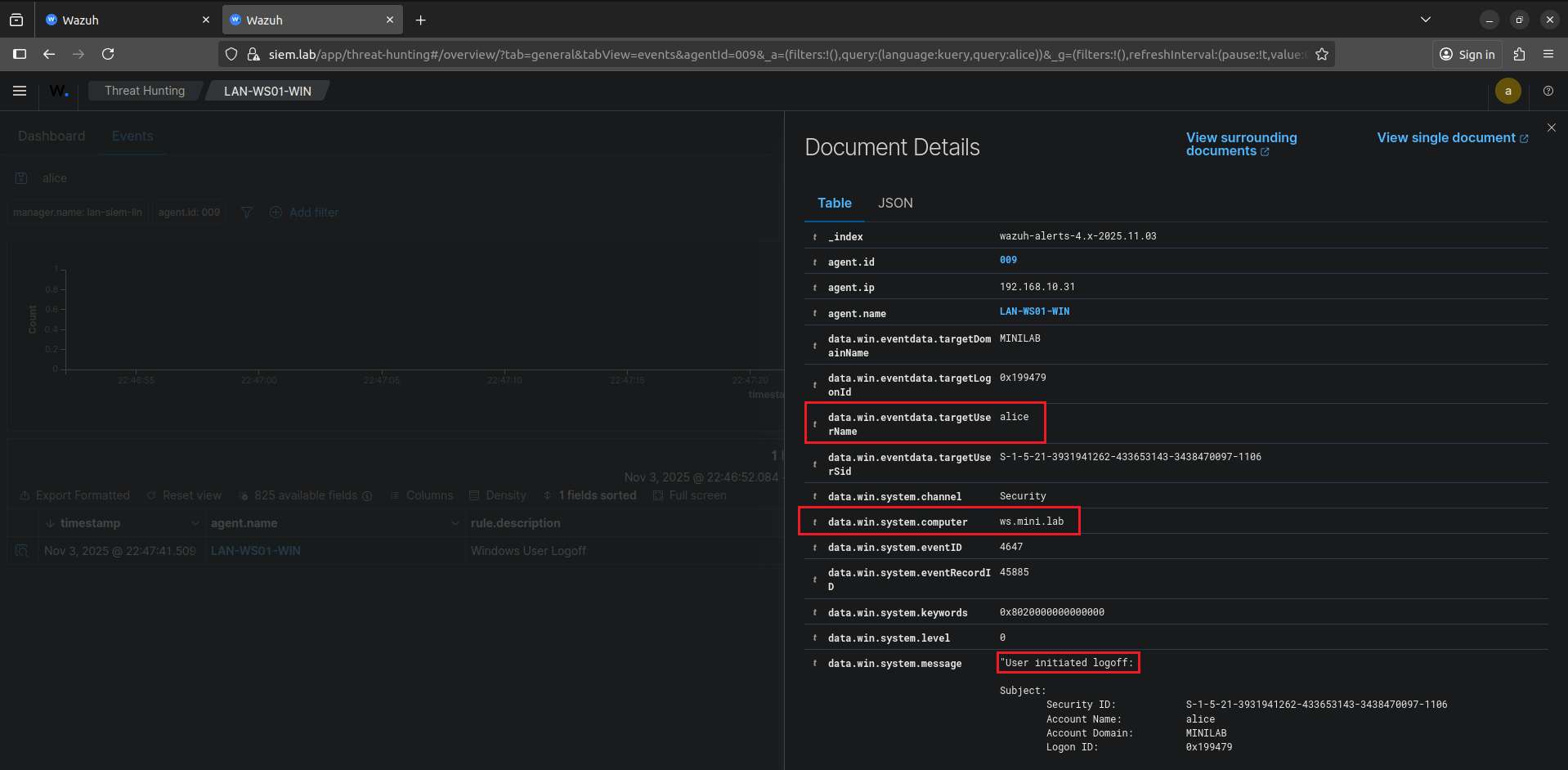
Perfect, we obtain a disconnection log in the same way.
**Conclusion**: ✅ Disconnection is detected and forwarded to Wazuh.
Let's now try to perform a failed connection with a wrong password.
## 4. Domain Connection (Failed)
**Test**: Simulate a connection attempt with an incorrect password.
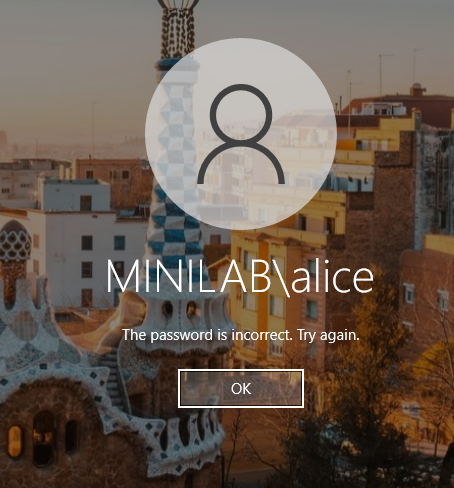
Simulation of a failed connection:

Our connection to the `mini.lab` domain then fails:
Now, let's look at Wazuh:
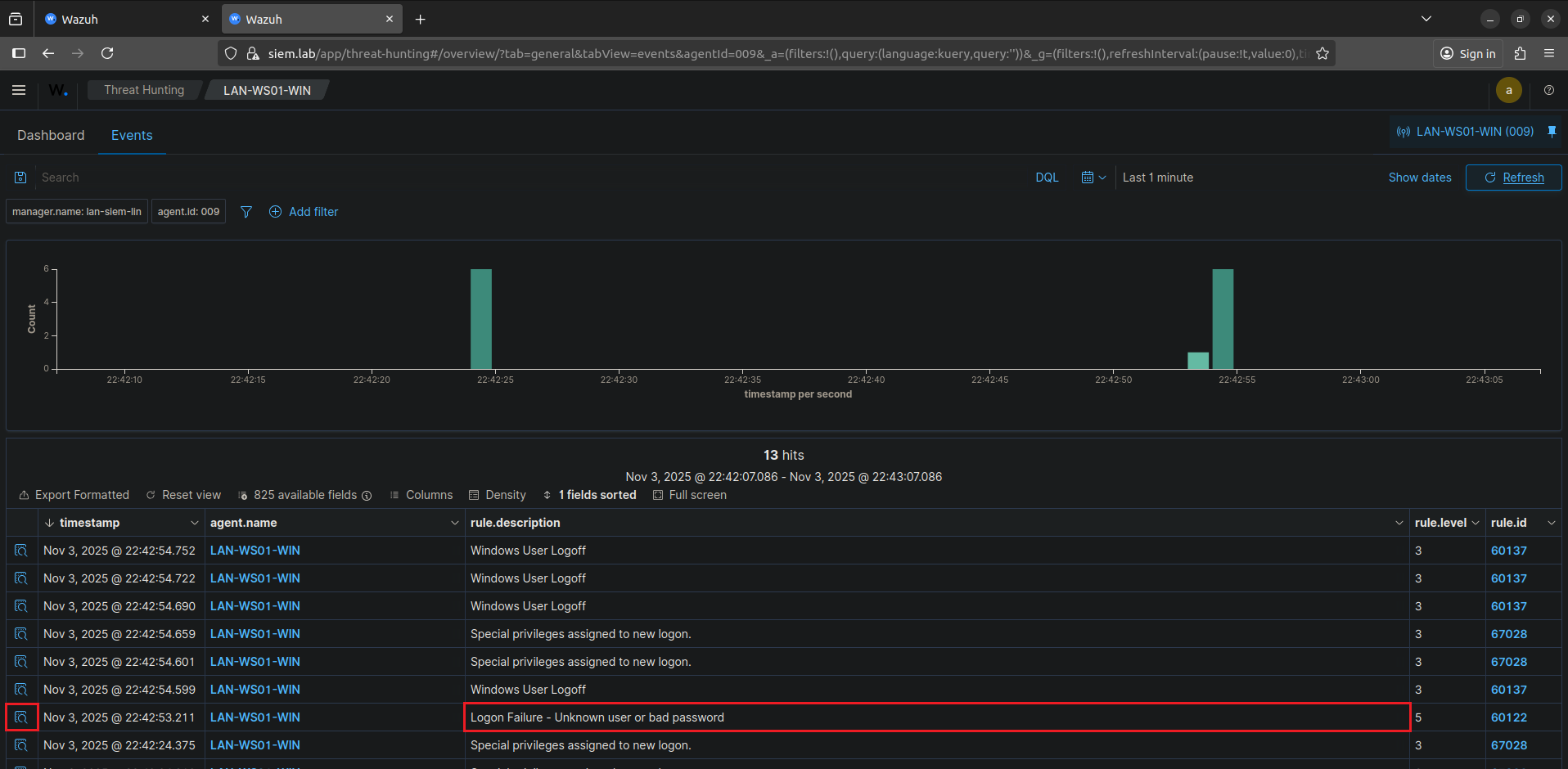
Good, our disconnection seems to have been correctly forwarded to Wazuh.
By inspecting log details, we obtain:
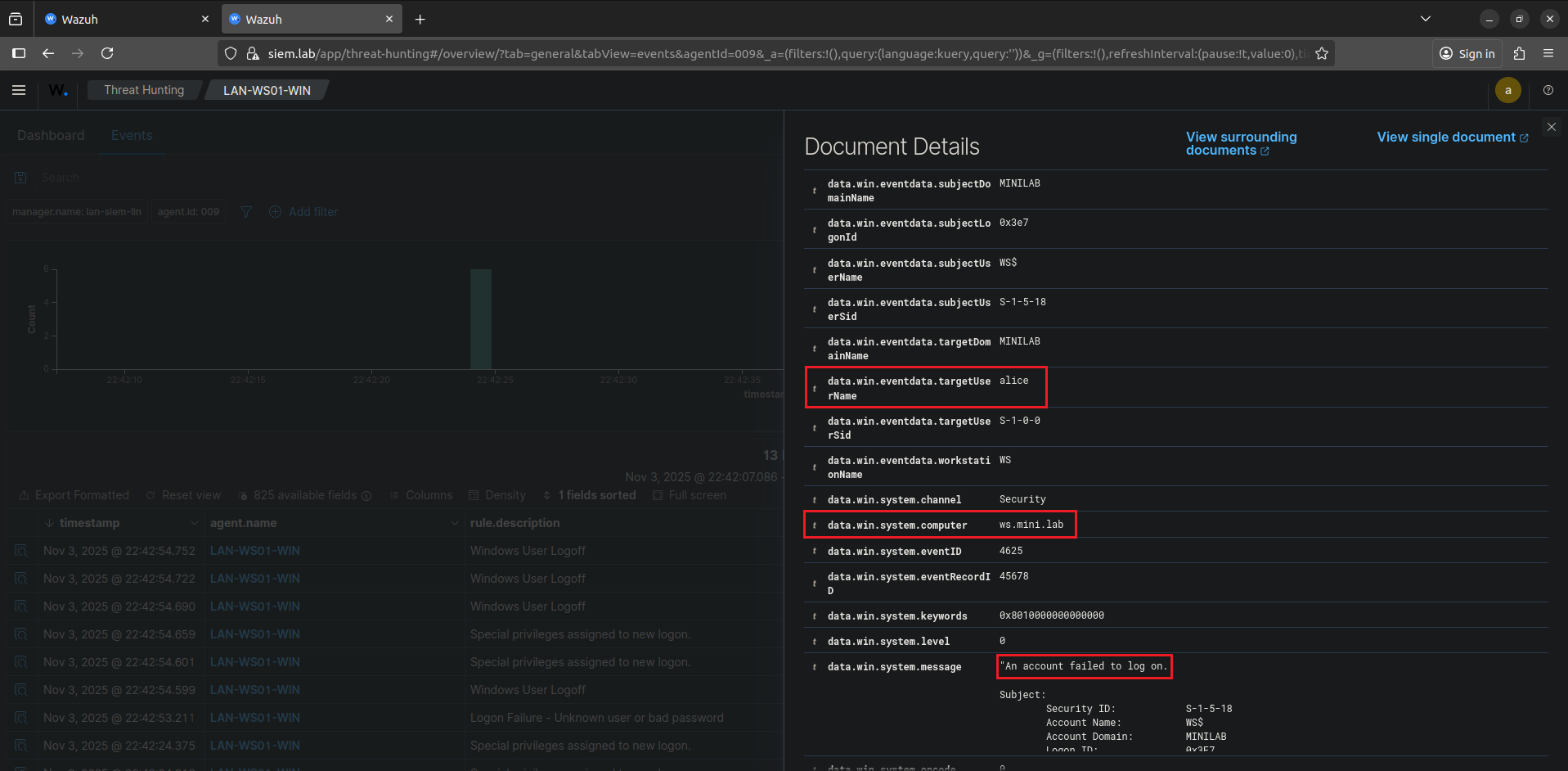
The information obtained seems consistent with our disconnection.
The logs from our GOAD MINILAB version lab seem to be correctly forwarded to Wazuh.
**Conclusion**: ✅ Authentication failures are detected and forwarded to Wazuh.
So far, the tests performed indicate that:
- ✅ The GOAD MINILAB version lab has been properly integrated into our LAN segment.
- ✅ GOAD machine logs are correctly sent to Wazuh.
At this stage, GOAD seems to work well. However, it is important to verify if the main Active Directory environment services are functional.
# IV. Essential AD Service Operation
**Objective**: Validate that critical Active Directory services function correctly on the domain controller (`DC01`).
**Steps**:
1. **Verify service status**:
- `netlogon` (network authentication).
- `DNS` (name resolution).
- `Kerberos` and `LDAP` (secure authentication and Active Directory directory).
2. **Validate share access**:
- `SYSVOL` (domain scripts and policies).
- `NETLOGON` (connection scripts).
**Expected Results**:
- **Active and accessible services**.
## 1. Service Status Verification
The following services are essential for Active Directory operation. Let's verify their status on the domain controller.
### Netlogon Service
The Netlogon service handles network authentication and secure channel establishment between domain members and the domain controller.
To verify that the `netlogon` service is active/running, we can execute the command in a `cmd` terminal (Command Prompt) on `LAN-DC01-WIN`:
```powershell
sc query netlogon
```
Result obtained:
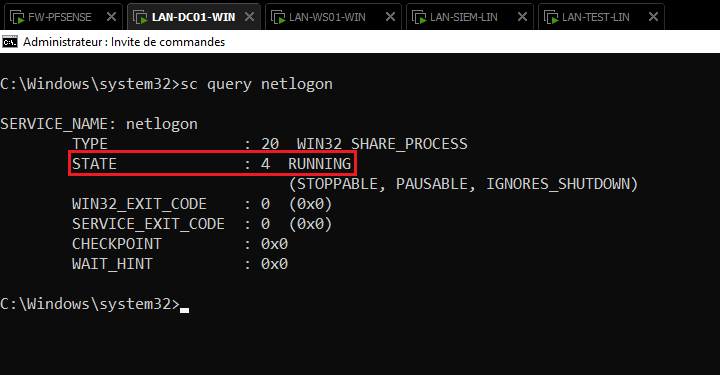
The `netlogon` service is therefore active.
Let's do the same for the `DNS` service.
### DNS Service
The DNS service provides name resolution for the Active Directory domain and is essential for domain member discovery and authentication.
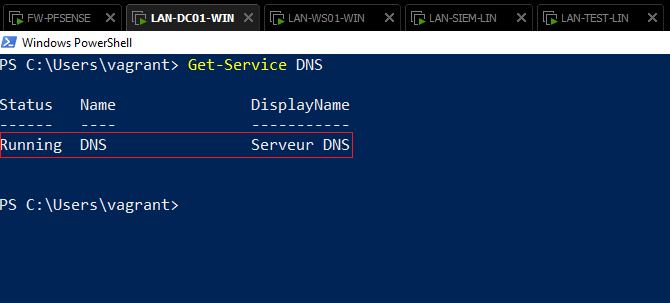
To verify that the `DNS` service is active/running, we can execute the command in a PowerShell terminal on `LAN-DC01-WIN`:
```powershell
Get-Service DNS
```
Result obtained:
Additionally, on a client machine, an additional verification can be performed with the `nslookup` command:
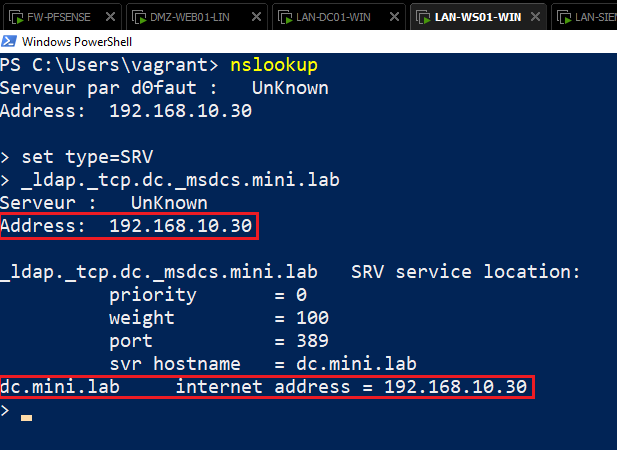
The `DNS` service is therefore active.
Similarly, let's do the same for `Kerberos` and `LDAP` services.
### Kerberos & LDAP Services
Kerberos and LDAP services are essential for authentication and the Active Directory directory. Kerberos manages secure authentication, while LDAP provides access to the AD object directory.
To verify that `Kerberos` and `LDAP` services are active, we can execute the following commands in a PowerShell terminal on `LAN-DC01-WIN`:
```powershell
Test-NetConnection -ComputerName dc -Port 389
Test-NetConnection -ComputerName dc -Port 88
```
Result obtained:
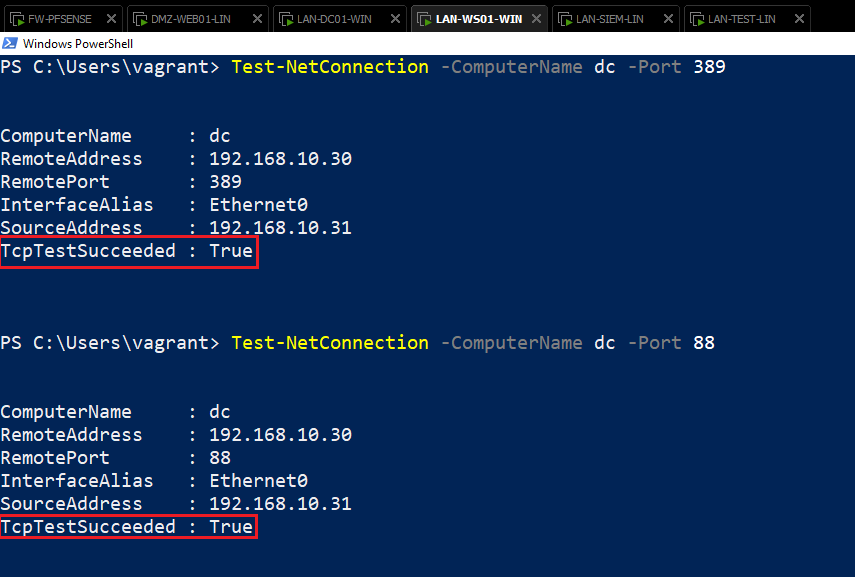
Both `Kerberos` and `LDAP` services are available and therefore active.
**Conclusion**: ✅ All critical services are active and functional.
## 2. Share Access Verification
Domain shares are essential for Active Directory operation. They contain scripts, policies, and other resources necessary for domain management.
### NETLOGON Share
The NETLOGON share contains logon scripts and other resources executed when users connect to the domain.
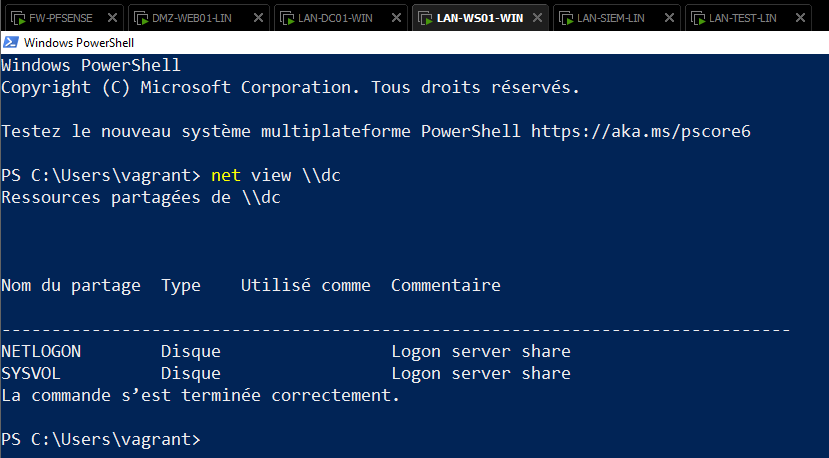
We can verify share access with the following PowerShell command:
```powershell
net view \\
# In our case:
net view \\dc
```
We then obtain:
Additionally, we can more concretely verify their accessibility with a `mini.lab` domain user:
We can first go to `Network > DC`:
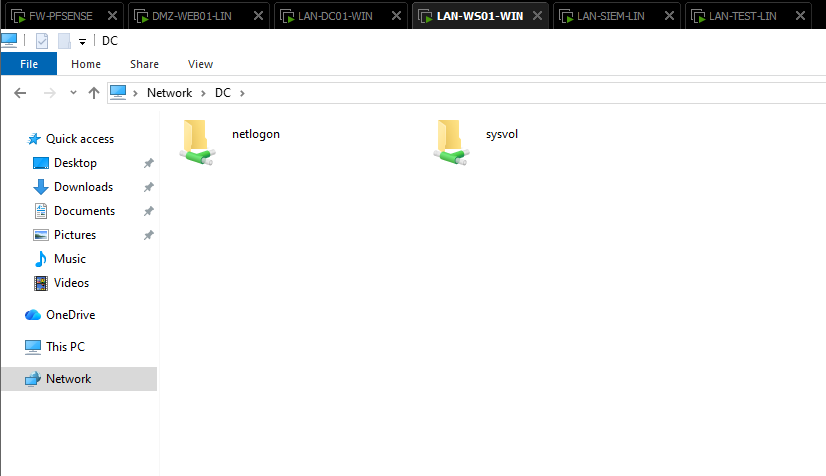
Good, shares appear to be present.
Let's quickly examine the content of these shares.
`NETLOGON` content:
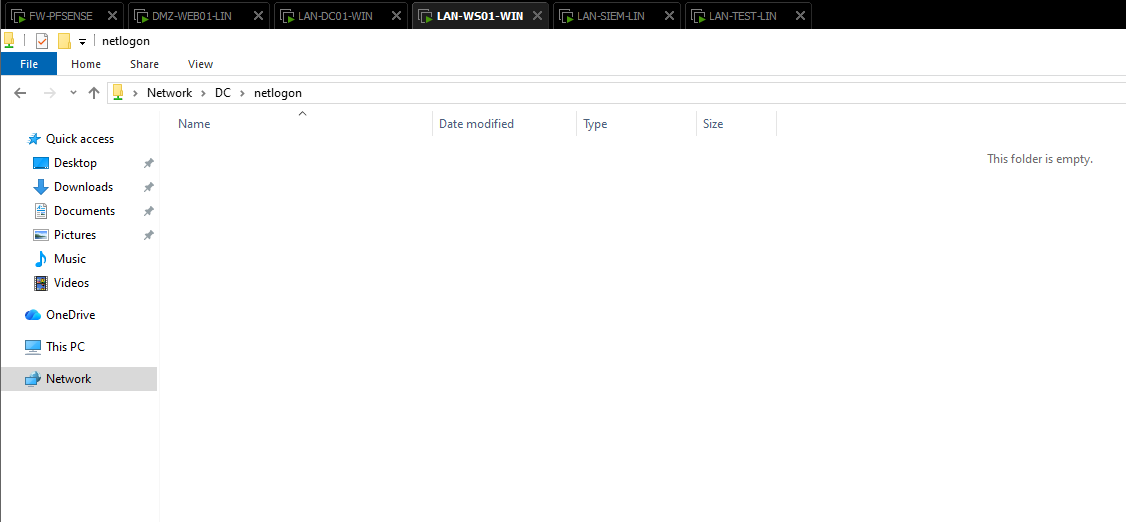
The share is apparently empty (normal in our case).
`SYSVOL` content:
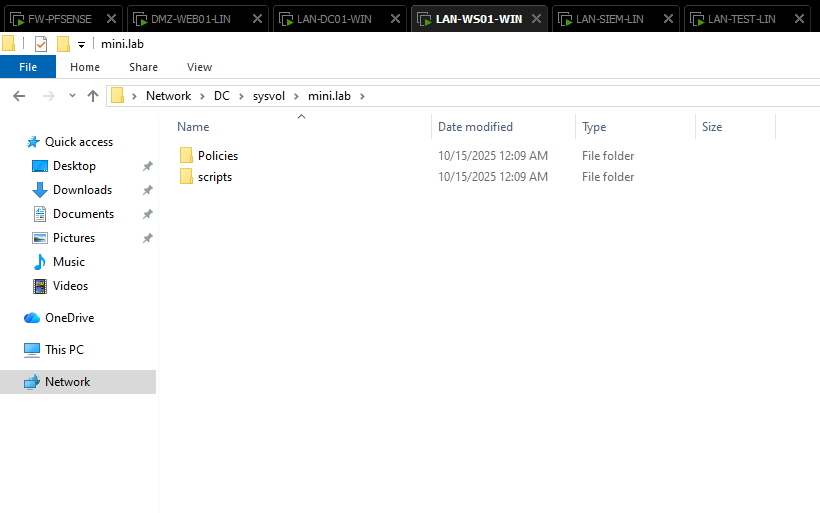
The share contains a directory named `mini.lab` (domain name).
It contains group policies (GPO) and scripts necessary for Active Directory domain operation.
**Conclusion**: ✅ `NETLOGON` and `SYSVOL` shares are accessible and contain expected elements (domain policies for `SYSVOL`).
# Conclusion
The tests performed confirm that:
- ✅ **GOAD MINILAB lab integration** into the Lab4PurpleSec LAN is functional.
- ✅ **Network connectivity** is validated between segments (LAN, DMZ) and GOAD machines.
- ✅ **AD authentication** works correctly, with log forwarding to Wazuh.
- ✅ **Essential AD services** (Netlogon, DNS, Kerberos, LDAP) are operational.
- ✅ **Critical shares** (`NETLOGON`, `SYSVOL`) are accessible and compliant.